Fix CSV import errors
What each import error code means, which rows it affects, and how to fix the file and import again.
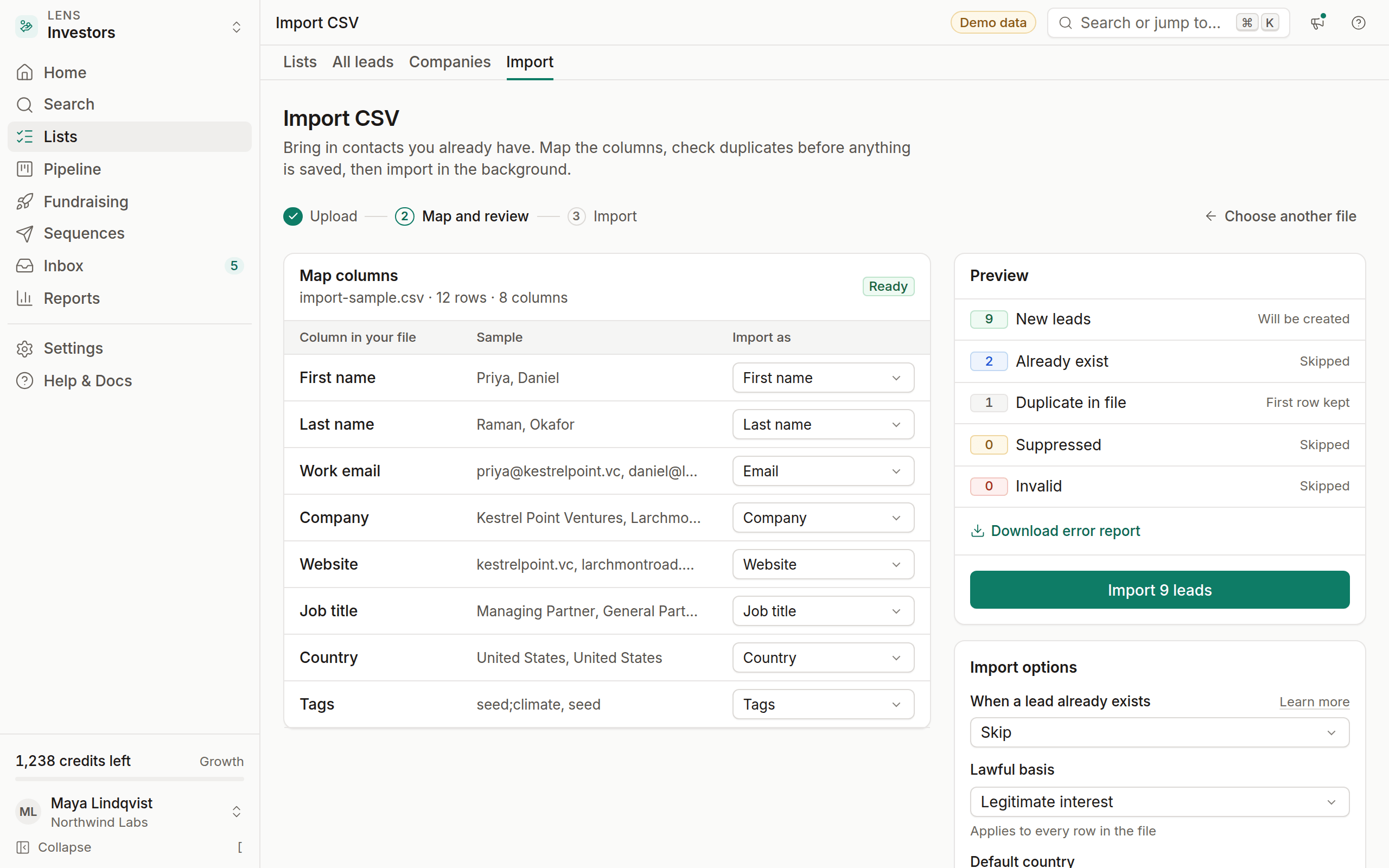
When you import a CSV, OmniLead checks every row before anything is saved. The preview shows how many rows will be created, updated or skipped, and groups problems by error code. Nothing is imported until you click Import, so you can fix the file first.
Find the errors
Upload and map
Go to Import, upload the file and map its columns to OmniLead fields.
Read the preview
The preview lists each error code with the number of rows it affects. Click a code to see the rows.
Download the report
Click Download error report for a CSV of every skipped row with its row number, error code and message. Fix those rows and import just them again.
Rows with errors are skipped. Other rows import normally, so one bad row never blocks the whole file.
File errors
These stop the whole file. Fix the file and upload it again.
unsupported_file
The file isn't a CSV. Excel (.xlsx), Numbers and Google Sheets files need exporting first: in Excel choose File → Save As → CSV UTF-8, in Google Sheets File → Download → Comma-separated values.
invalid_encoding
The file isn't UTF-8, so names with accents or non-Latin characters would be garbled. Save it again as CSV UTF-8. In older Excel versions, choose Tools → Web Options → Encoding → Unicode (UTF-8) before saving.
no_header_row
The first row must name the columns, for example First name, Last name, Email, Company. Add a header row and upload again.
missing_required_column
Each lead needs either an Email column, or a name plus a Company or Company domain column. Map one of these, or add the column to the file.
file_too_large
A file can have up to 50,000 rows and 20 MB. Split bigger files and import them one after another; duplicates across the parts are caught automatically.
plan_lead_limit
The import would take the workspace over its plan's lead limit. Free workspaces hold up to 500 leads. The preview says how many rows fit. Import fewer rows, delete leads you no longer need, or upgrade for unlimited leads.
Row errors
These skip individual rows. The rest of the file imports.
invalid_email
The email isn't a valid address: a missing @, a space, a trailing dot, or text such as "n/a". Correct it or clear the cell. A row with no email still imports if it has a name and a company.
duplicate_in_file
The same email appears more than once in the file. OmniLead keeps the first row and skips the rest. Merge the rows if they hold different information.
duplicate_existing
A lead with this email is already in your workspace. What happens depends on the When a lead already exists option on the mapping screen:
- Skip (default): the existing lead is left as it is.
- Update empty fields: fields that are empty on the existing lead are filled from the file. Nothing is overwritten.
- Overwrite: mapped fields replace the existing values. Revealed emails and their provenance are never overwritten.
suppressed
The address or its domain is on your suppression list, or the person opted out of OmniLead through the public portal. The lead is skipped so they can't be emailed. See Handle unsubscribes and suppression.
invalid_phone
The phone number can't be read as a real number. Include the country code (for example +44 20 7183 8750), or map a Country column so local numbers can be interpreted. Phone numbers are stored in international format.
invalid_country
The country isn't recognised. Use a two-letter code such as DE or US, or the country's English name. Country matters: it decides which sending rules apply.
missing_name
The row has no email and no name, so there's nothing to identify the lead by. Add a name or an email.
invalid_custom_field
A value doesn't fit its custom field's type, for example text in a number field or a date OmniLead can't read. Dates work best as YYYY-MM-DD.
malformed_row
The row has more or fewer columns than the header, usually because of a comma inside a value that isn't wrapped in quotes, or a stray quote mark. Wrap values that contain commas in double quotes, for example "Acme, Inc.".
Tips for a clean import
- Export from the source tool as CSV UTF-8.
- Keep one person per row and one value per cell.
- Include a Source URL column if you know where each contact came from. It's stored as provenance.
- Add a Tags column (comma-separated inside quotes) to tag rows as they import.
- Try the first 20 rows as a test file before importing thousands.
Does importing cost credits?
No. Importing your own contacts is free. Credits are only for searching and revealing.
Are imported emails verified?
Imported emails keep the status from your file until they're verified. Check the verification badge before you enroll imported leads, and send to Valid addresses first.