Invoices and tax
Find and download invoices, add your company details and VAT number, and understand how Stripe Tax calculates sales tax and VAT.
OmniLead bills through Stripe. Every payment, whether a plan renewal, an upgrade or a credit pack, produces an invoice. Stripe Tax works out any sales tax, VAT or GST from your billing address and tax ID, and shows it as a separate line.
Find your invoices
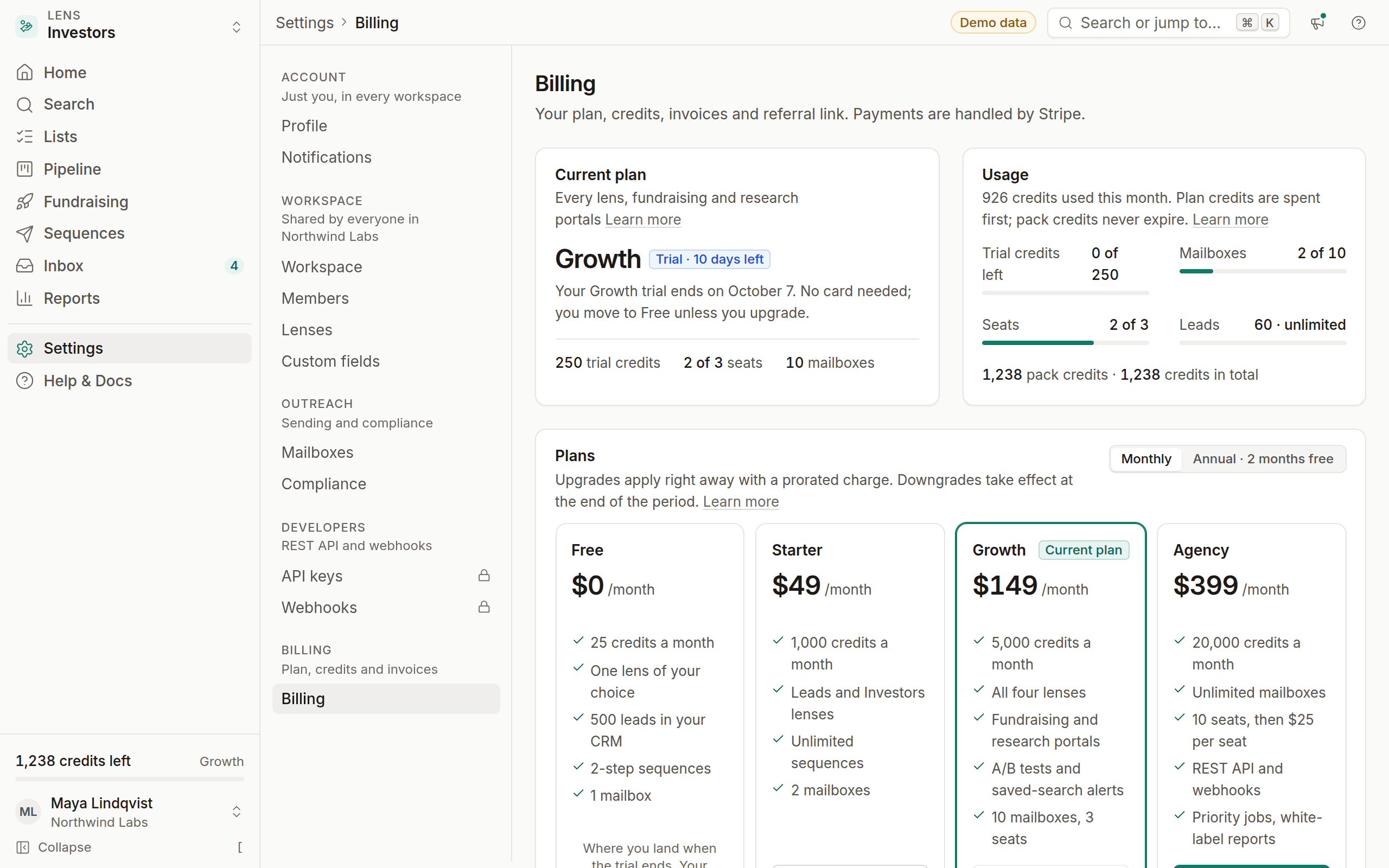
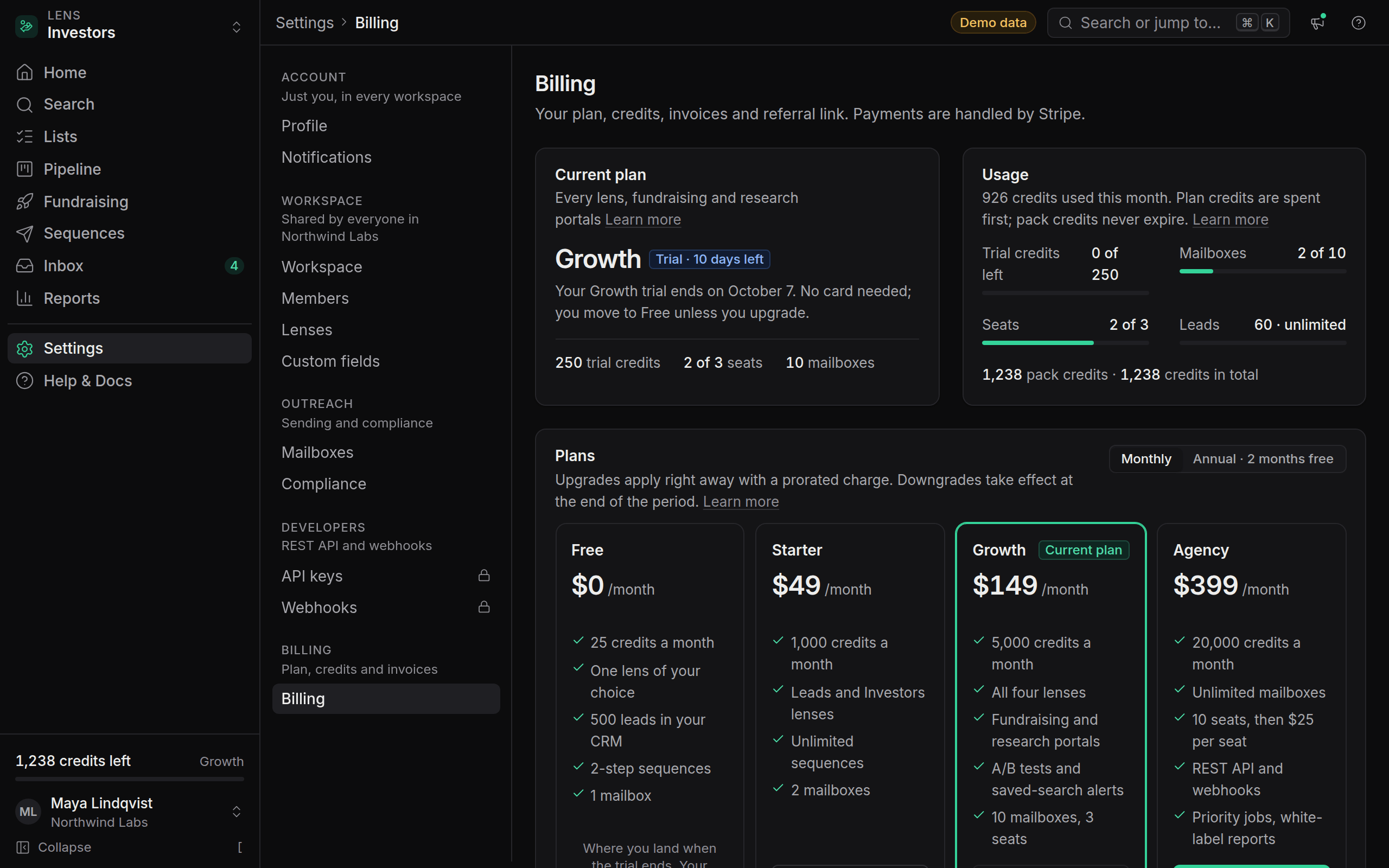
The most recent invoices are listed at the bottom of Settings → Billing, with the date, amount and status. For the full history and PDF downloads, use the Stripe Customer Portal.
Open billing
Go to Settings → Billing. Only owners and admins can open billing.
Open the Customer Portal
Click Manage in Stripe. A secure Stripe page opens for your workspace.
Download
Under Invoice history, click an invoice, then Download invoice or Download receipt.
Stripe also emails a receipt to the billing email after every payment. To send receipts to your finance team, change the billing email in the portal.
Add company details and a tax ID
Invoices show the name, address and tax ID from your billing details. Add them before you pay so they're on the invoice from the start.
Open the Customer Portal
In Settings → Billing, click Manage in Stripe.
Update billing information
Under Billing information, click Update information.
Enter your details
Fill in your company name, billing address and, if you have one, your tax ID, such as an EU VAT number, UK VAT number or Australian ABN.
Save
Click Save. Future invoices use the new details.
You can also add a tax ID in Stripe Checkout the first time you pay, by ticking I'm purchasing as a business.
How tax is calculated
OmniLead uses Stripe Tax, which calculates tax from where you are and whether you're buying as a business:
- United States: sales tax is added in states where software subscriptions are taxable and where we're registered to collect.
- European Union: businesses with a valid VAT number are usually charged no VAT, and the invoice notes that the reverse charge applies, so you account for VAT yourself. Without a VAT number, VAT is charged at your country's rate.
- United Kingdom: VAT is handled the same way with a UK VAT number.
- Other countries: GST or VAT is added where the law requires it, for example in Australia, New Zealand or Canada.
Prices on the pricing page are before tax. Checkout and the plan-change confirmation show the tax before you pay.
Payment methods and failed payments
Plans and packs are paid by card. Update your card in the Customer Portal under Payment method.
If a renewal payment fails:
- Stripe tries the card again over the following days.
- Owners and admins get an email, and a banner in OmniLead asks you to update your card, with a button that opens the portal.
- Your plan keeps working while Stripe retries.
- If every retry fails, the subscription is cancelled and the workspace moves to Free. Your data is kept, and you can subscribe again at any time.
Currency
All prices and invoices are in US dollars. Your bank may convert the amount into your currency and charge its own fee for doing so.
Can I pay by invoice or bank transfer?
Card payment is the standard. For annual Agency plans, contact support to ask about paying by invoice.
Why is there tax on my invoice when I have a VAT number?
Check that the VAT number is in your billing details and that it's valid in the EU VIES system. Stripe applies the reverse charge only to verified numbers.
Do credit packs get invoices?
Yes. Every pack purchase creates an invoice in the Customer Portal.