SPF, DKIM and DMARC explained
What the three email authentication records do, in plain English, why mailbox providers require them, and how OmniLead checks them.
When your email arrives at Gmail, Outlook or any other provider, the receiving server asks one question first: is this really from who it says it's from? SPF, DKIM and DMARC are three DNS records that answer it. Without them, your outreach is far more likely to land in spam, or be rejected outright.
Since 2024, Gmail and Yahoo require every sender to authenticate with SPF or DKIM, and anyone sending in volume to have SPF, DKIM and DMARC. Treat all three as required.
The short version
You add all three at your DNS host, the company where your domain's DNS is managed. Set up DNS records has click-by-click steps for the common hosts.
SPF
Sender Policy Framework is a list of the servers allowed to send email for your domain. The receiving server checks whether the server that sent the message is on the list.
An SPF record is one TXT record on your root domain. For a domain that sends through Google Workspace, it looks like this:
- Type
- TXT
- Host
@your root domain- Value
v=spf1 include:_spf.google.com ~all
v=spf1marks it as an SPF record.include:_spf.google.comallows Google's mail servers.~allsays anything else should be treated with suspicion (a "soft fail").
The include depends on your email provider:
OmniLead sends through your own mailbox's servers, so you don't add anything for OmniLead itself.
DKIM
DomainKeys Identified Mail adds a digital signature to every message. Your email provider signs outgoing mail with a private key, and publishes the matching public key in your DNS. The receiving server uses it to check that the message really came from your domain and wasn't changed on the way.
Your email provider generates the DKIM record for you. It's published at a selector, a name that comes before ._domainkey:
- Type
- TXT
- Host
google._domainkey- Value
v=DKIM1; k=rsa; p=MIIBIjANBgkqh…(your provider's key)
Where to get your DKIM record:
- Google Workspace: Admin console → Apps → Google Workspace → Gmail → Authenticate email. Click Generate new record, add it at your DNS host, then come back and click Start authentication.
- Microsoft 365: Microsoft Defender portal → Email & collaboration → Policies & rules → Threat policies → Email authentication settings → DKIM. Microsoft gives you two CNAME records (
selector1._domainkeyandselector2._domainkey). Add both, then turn on signing. - Zoho Mail: Admin console → Domains → your domain → Email configuration → DKIM. Add a selector, copy the TXT value, then click Verify.
DMARC
Domain-based Message Authentication, Reporting and Conformance ties SPF and DKIM to the address people see in the From line, tells receivers what to do when a message fails, and asks them to send you reports.
A DMARC record is a TXT record at _dmarc. Start in monitoring mode:
- Type
- TXT
- Host
_dmarc- Value
v=DMARC1; p=none; rua=mailto:dmarc@yourcompany.com
p=nonemeans "don't block anything yet, just report". Receivers deliver as usual.rua=mailto:…is where daily aggregate reports are sent. Use an address you can read, or a DMARC reporting service.
Once reports show your real mail passing for two to four weeks, tighten the policy:
Move to p=quarantine first. p=reject gives the strongest protection against people spoofing your domain, once you're sure every legitimate sender is covered by SPF or DKIM.
How the three work together
- Your mailbox sends a message signed with DKIM, from a server listed in your SPF record.
- The receiver checks SPF (is the server allowed?) and DKIM (is the signature valid?).
- DMARC checks that at least one of them passes and matches the domain in the From address.
- If DMARC passes, the message is authenticated. If it fails, the receiver follows your DMARC policy.
How OmniLead checks your records
Every mailbox card in Settings → Mailboxes shows the status of SPF, DKIM and DMARC for the mailbox's domain. OmniLead looks up your DNS and shows:
- Pass in green when the record exists and is valid
- Missing or Invalid with the problem, such as "Two SPF records found"
- A Learn more link to the section of this page that explains the fix
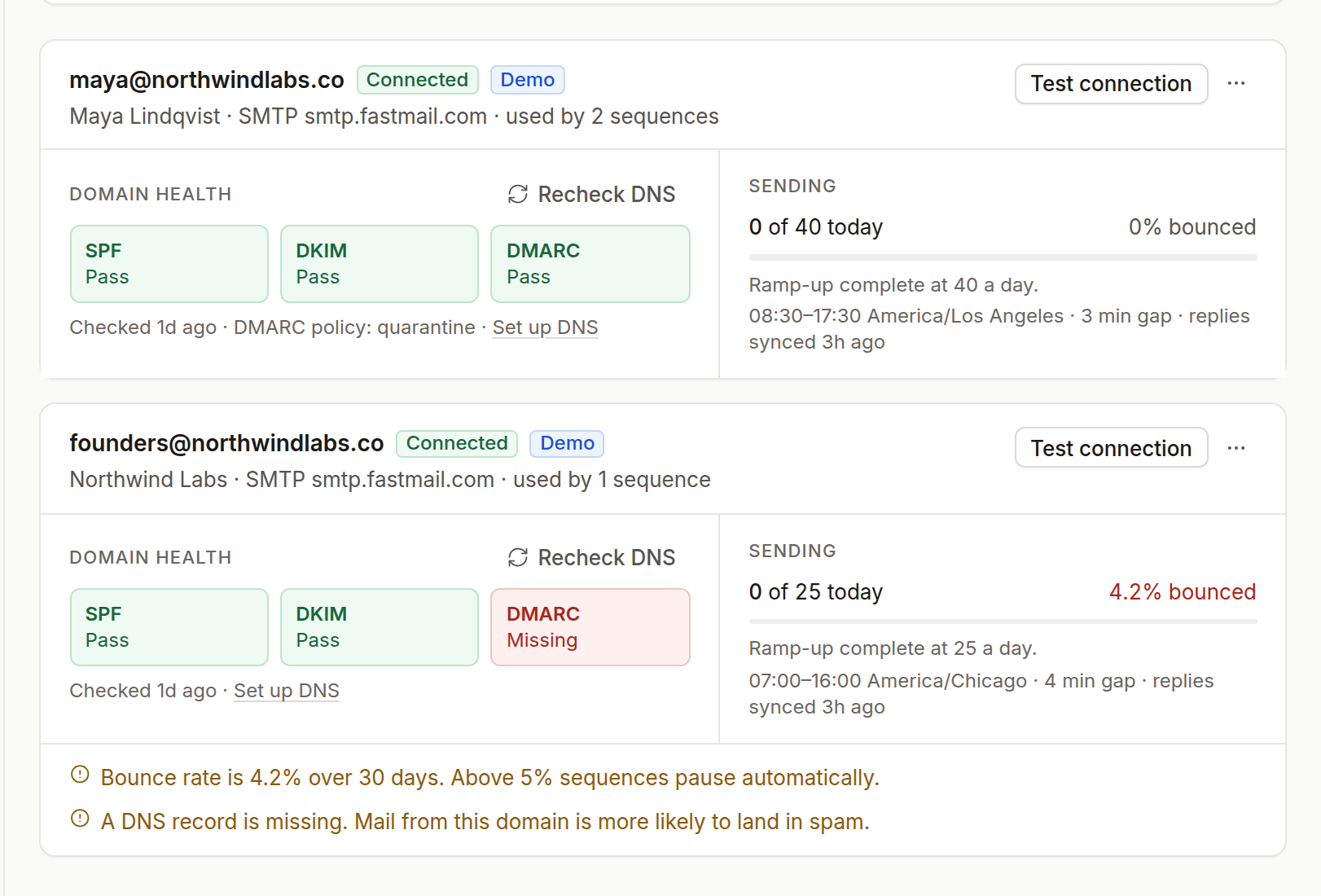
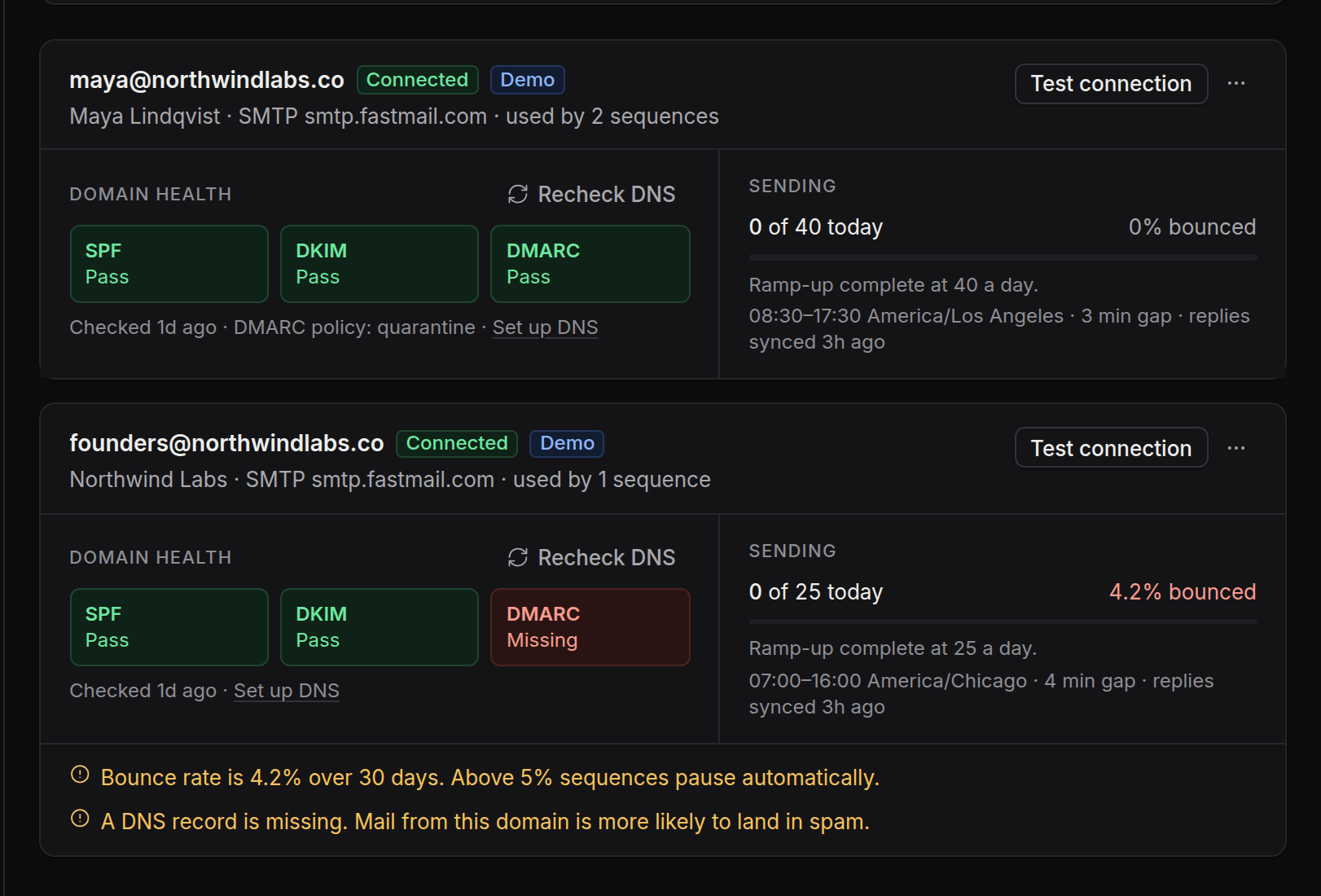
A mailbox needs all three to pass the Mailbox health item on a sequence's pre-launch checklist. DNS changes can take from a few minutes up to 48 hours to be visible. Click Recheck on the mailbox card after you add records.