Pipelines and stages
Track every conversation on a kanban board or table, create pipelines for sales, fundraising or grants, and customize their stages.
A pipeline is an ordered set of stages that leads move through, from first contact to a result. OmniLead shows it as a kanban board or a table, and you can have as many pipelines as you need: one for sales, one for your round, one for grant applications.
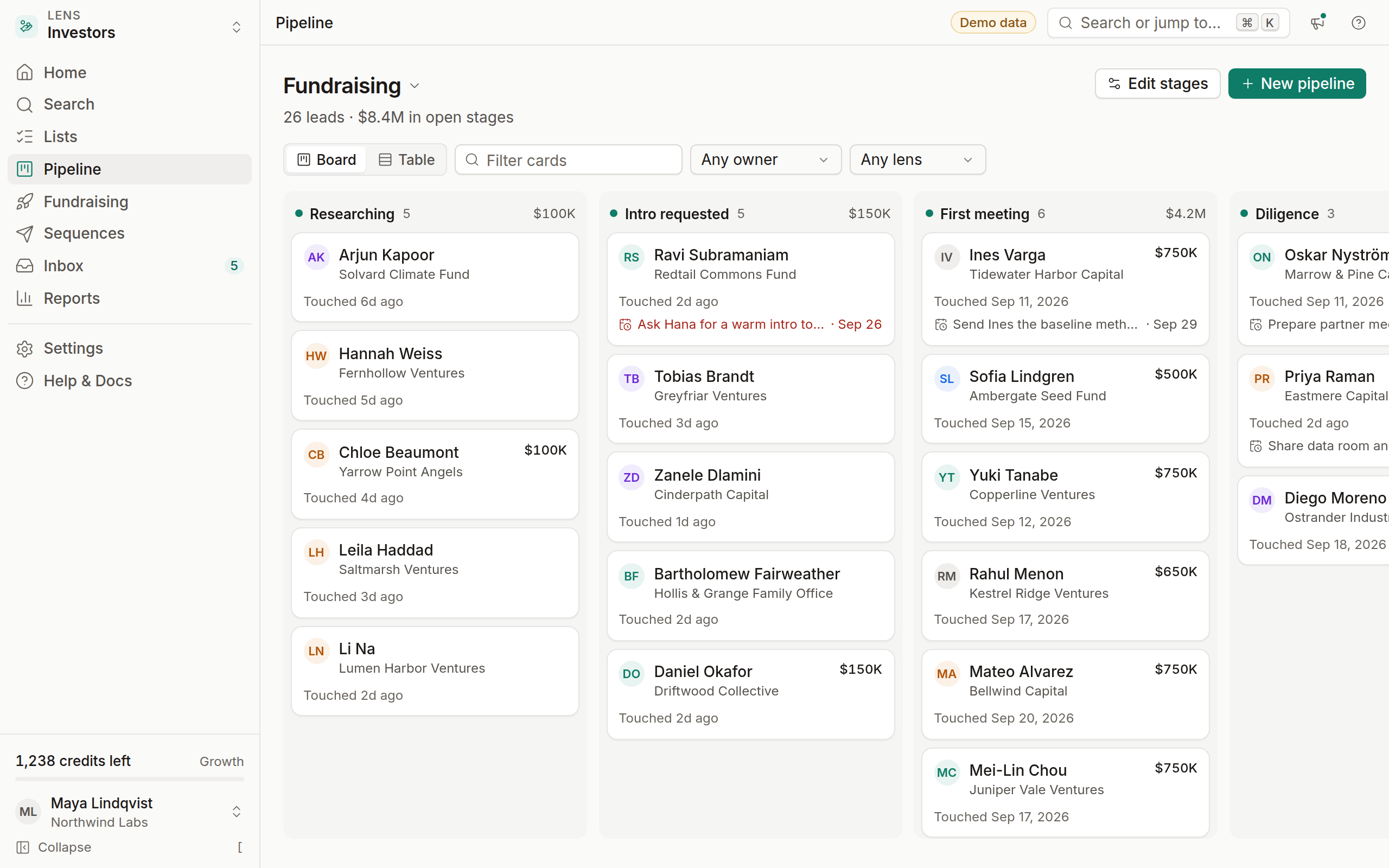
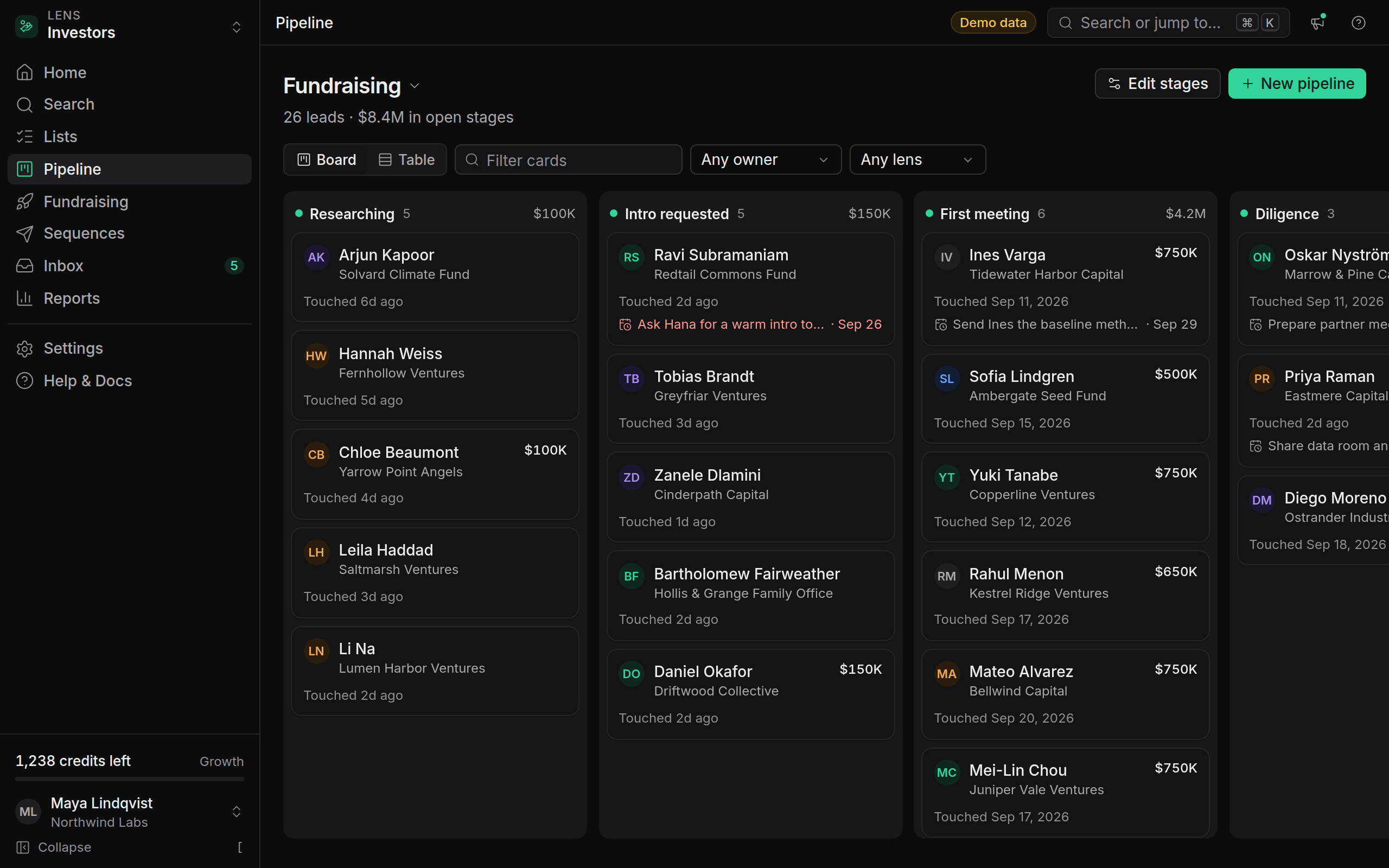
Open your pipeline
Click Pipeline in the sidebar, or press G then P. If you have more than one pipeline, click the pipeline name at the top of the page to switch.
Each column is a stage. Its header shows the number of leads and, when leads have a deal value, the column total. Each card shows the lead's avatar, name, organization, deal value, when you last touched them and their next task.
Board and table views
Use the Board and Table toggle under the page title to switch views.
- Board is best for moving leads along and seeing where things are stuck. Narrow the cards with Filter cards, an owner (Any owner) or a source lens (Any lens).
- Table is best for sorting and selecting many leads for a bulk action. Columns are resizable and can be hidden. Save a combination of sort and visible columns as a view with Save view.
Move a lead to another stage
Drag the card
Pick the card up and drop it in another column. The move saves instantly.
Or change it on the lead
Open the lead and choose a stage from the stage menu at the top.
Every move is recorded in the lead's activity timeline with who moved it and when. If you move a card by mistake, click Undo in the toast.
Some moves happen automatically:
- A reply to a sequence moves the lead to Replied, or to the stage the sequence is set to use.
- Saving a grant to a pipeline creates a deadline task.
Create a pipeline
Click New pipeline
Use the button at the top right, or click the pipeline name and choose it from the menu.
Pick a template
Choose Sales, Fundraising, Research or Blank.
Name it
Click Create pipeline. You can change the stages afterwards with Edit stages.
Templates
Edit stages
Click Edit stages at the top of the page.
- Rename a stage by editing its name.
- Reorder with the up and down arrows.
- Set the type: Open, Won or Lost. Won and lost stages close a deal and count toward your win rate in Reports.
- Add stage adds a new stage at the end.
- Remove a stage: its leads move to the first stage. Nothing is deleted with the stage.
Click Save stages when you're done. Delete pipeline removes the pipeline and its stages; the leads stay in your workspace and other pipelines.
Deal value
Open a lead and fill in Deal value. Cards show it, and column totals and the home screen's pipeline value tile add it up. For fundraising, use it for the amount you hope to raise from each investor.
One lead, several pipelines
A lead can be in more than one pipeline, for example a founder who is both a customer prospect and a potential angel. Each pipeline tracks its own stage for that lead, and the lead's page shows all of them.