Import a CSV
Bring your existing contacts into OmniLead, map columns, preview duplicates before anything is written, and set a lawful basis.
Import contacts you already have, from another CRM, a spreadsheet or an event list, so all your outreach runs from one place. OmniLead maps your columns, shows you what will be created, updated or skipped, and only then imports.
Before you start
- Save your file as CSV (UTF-8). From Excel, use File → Save As → CSV UTF-8. From Google Sheets, use File → Download → Comma-separated values.
- Put column names in the first row.
- Each row is one person. Company-only rows are fine too.
- Include an email or a name plus company or domain for each row, so duplicates can be detected.
first_name,last_name,email,company,domain,title,country,phone,tags
Ana,Ruiz,ana@example.com,Example Labs,example.com,Head of Operations,ES,+34 912 345 678,Conference 2026
Tom,Becker,,Northwind GmbH,northwind.de,CTO,DE,030 901820,"Warm intro;Q4 target"
Import your file
Open Import
Click Import CSV from the command palette or the Lists page, or go to
/app/import.Upload the file
Drag the file onto the page or click Choose file.
Map columns
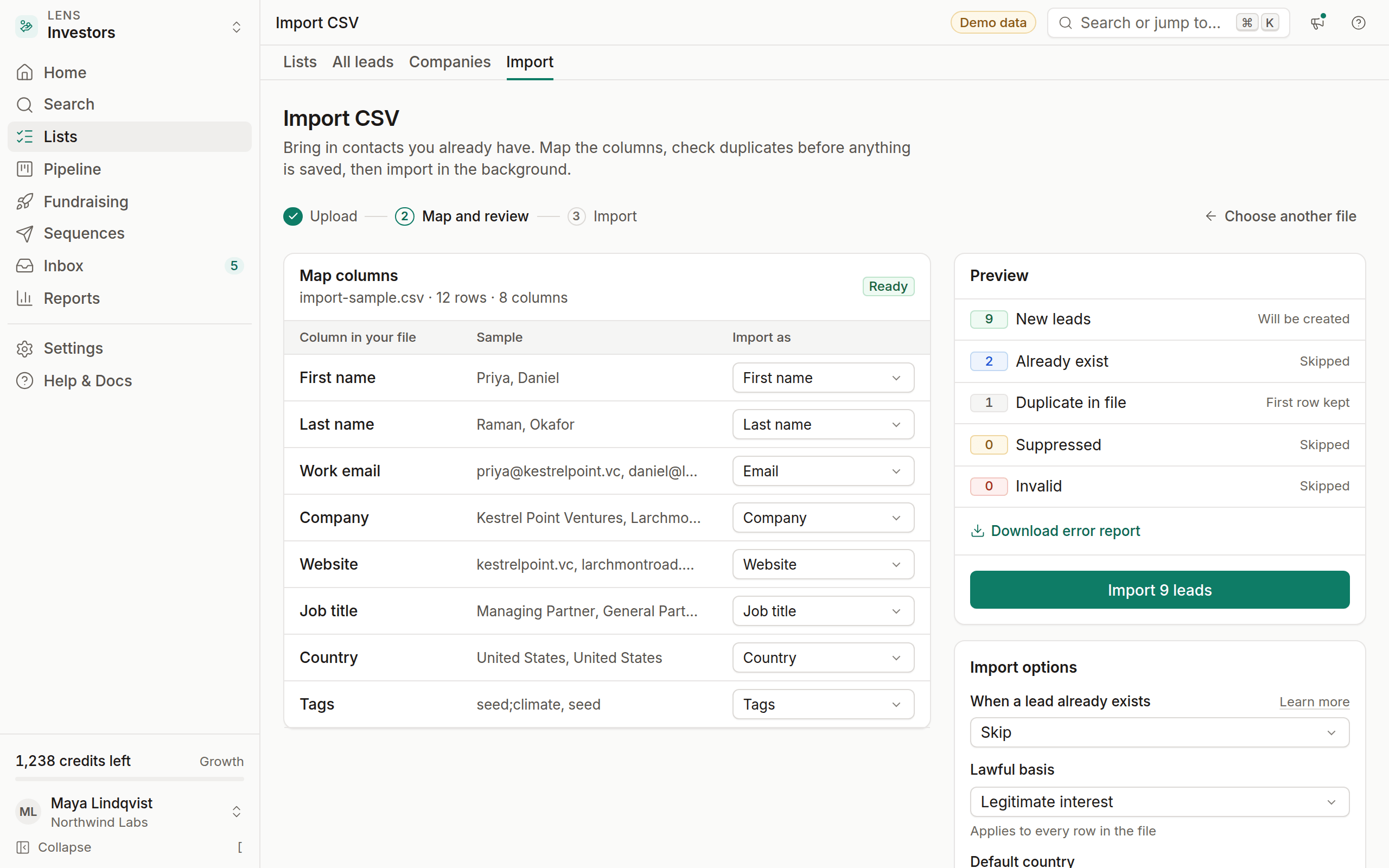
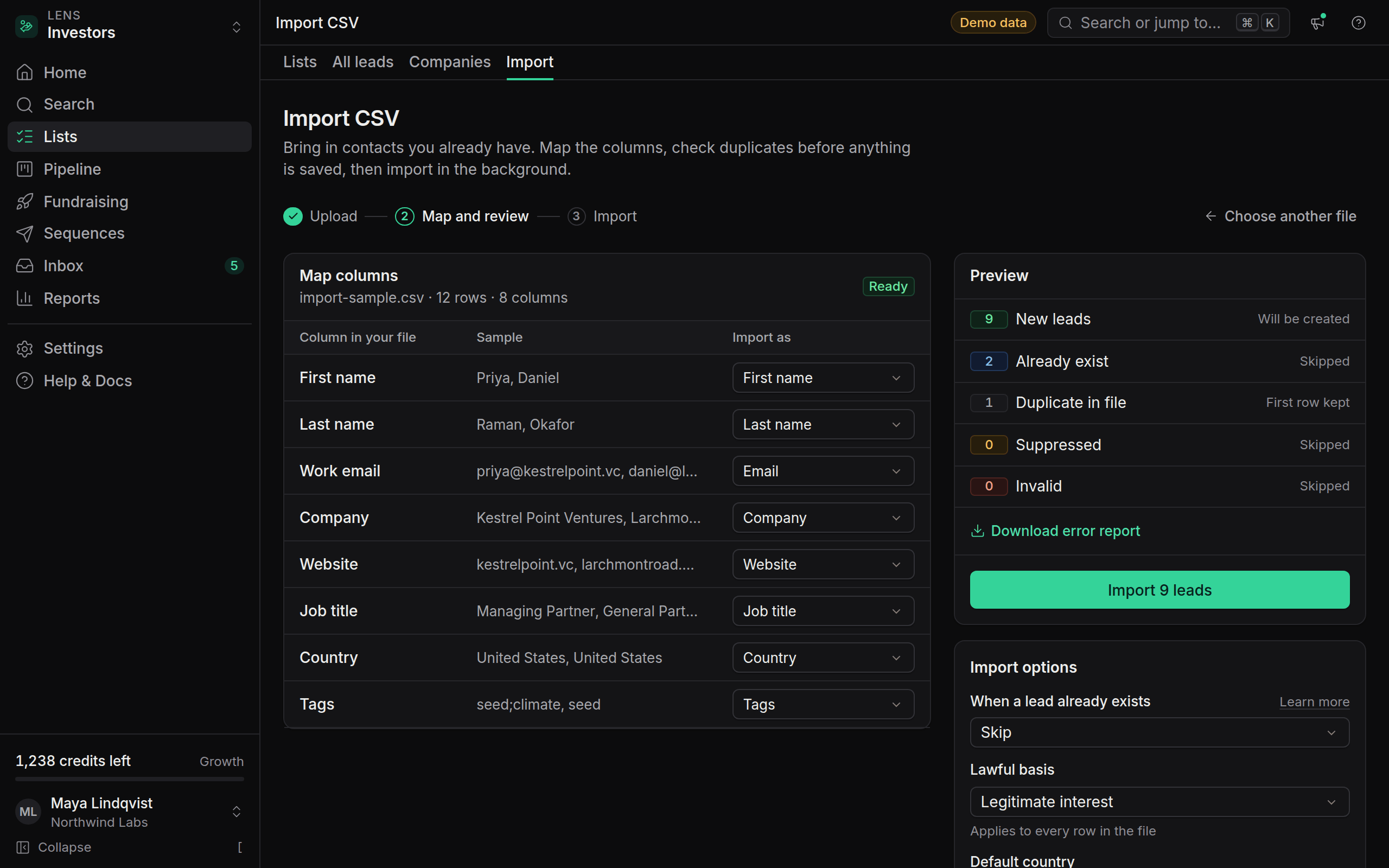
OmniLead matches columns by name. Check each mapping and change any that are wrong. Choose Don't import for columns you don't need, or map them to a custom field. You need Email, or a name and Company.
Set import options
Choose what happens When a lead already exists, the Lawful basis, a Default country for phone numbers without a country code, the tags to add with Tag every lead, and optionally Add to pipeline (with a Stage) and Add to list.
Review the preview
The preview counts New leads, leads that Already exist, Duplicate in file, Suppressed and Invalid rows, with examples of each.
Start the import
Click Import (the button shows how many leads, such as Import 240 leads). The import runs in the background with a progress bar, and Import finished shows what was created, updated and skipped.
Duplicate detection
OmniLead checks each row against the leads already in your workspace, and against other rows in the same file.
Duplicate rows in the same file are imported once: the first row is kept. For rows that match an existing lead, When a lead already exists decides what happens, for the whole file:
- Skip: leave the existing lead untouched
- Update empty fields: fill fields that are empty on the existing lead
- Overwrite: replace the existing lead's values with the mapped columns
Rows with problems
The preview flags rows it can't import cleanly, and they're skipped:
- Invalid: no email and no name with a company or domain, or an email with invalid syntax
- Suppressed: the email is on your suppression list or opted out globally
After the import, click Download error report for the rows that weren't imported and why. Fix them and import that file. Past reports are in Import history as Error report.
Lawful basis and provenance
Imported fields show CSV import as their source in the lead's provenance. Choose the lawful basis that applies to the whole file:
- Legitimate interest: typical for B2B contacts you have a relevant reason to reach
- Consent: people who opted in, for example on a sign-up form. Required for Canadian recipients.
- Contract: existing customers
After the import
- Imports don't cost credits. Contacts you import are already visible, so there's nothing to reveal.
- On Free, imports count toward the 500-lead limit. The preview warns you if the file would go over it.
- To undo an import, open Import history and choose Delete imported leads for that import. Leads you've edited since are kept.