Fix emails going to spam
Find out why your outreach lands in spam and fix it, from DNS authentication to volume, content and bounces.
If replies dry up or a prospect tells you your email was in their spam folder, work through this page from the top. The causes are listed in the order they most often matter: authentication, reputation, volume, then content.
1. Check authentication: SPF, DKIM and DMARC
Mailbox providers trust mail they can prove came from you. Three DNS records do that, and Gmail and Yahoo require all three from anyone sending in volume.
Open mailbox health
Go to Settings → Mailboxes and look at the mailbox card. It shows SPF, DKIM and DMARC, each passing, missing or failing.
Fix anything that isn't passing
Add or correct the DNS record at your domain host. The card links to the exact steps.
Check again
DNS changes can take up to an hour. Click Recheck DNS on the card.
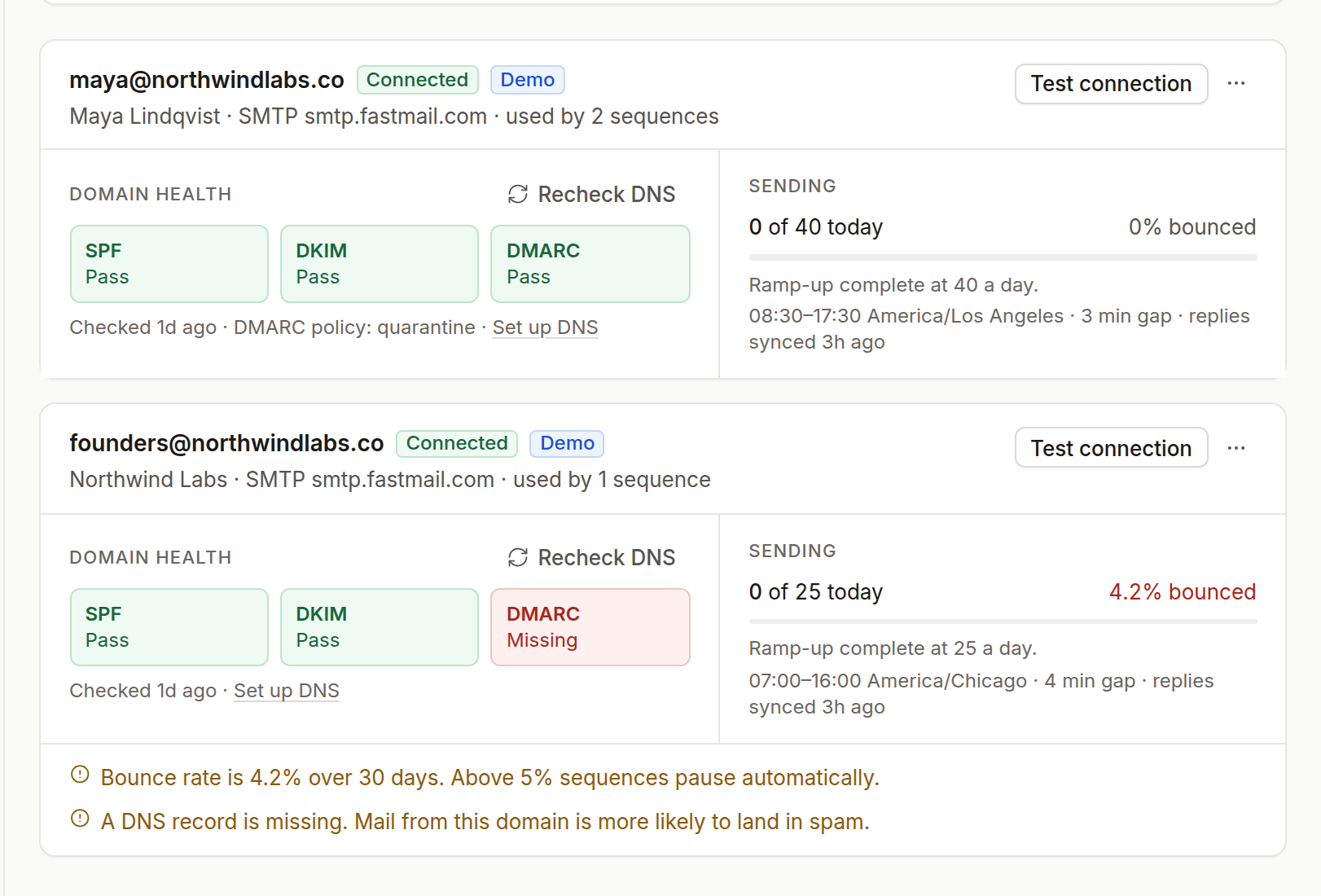
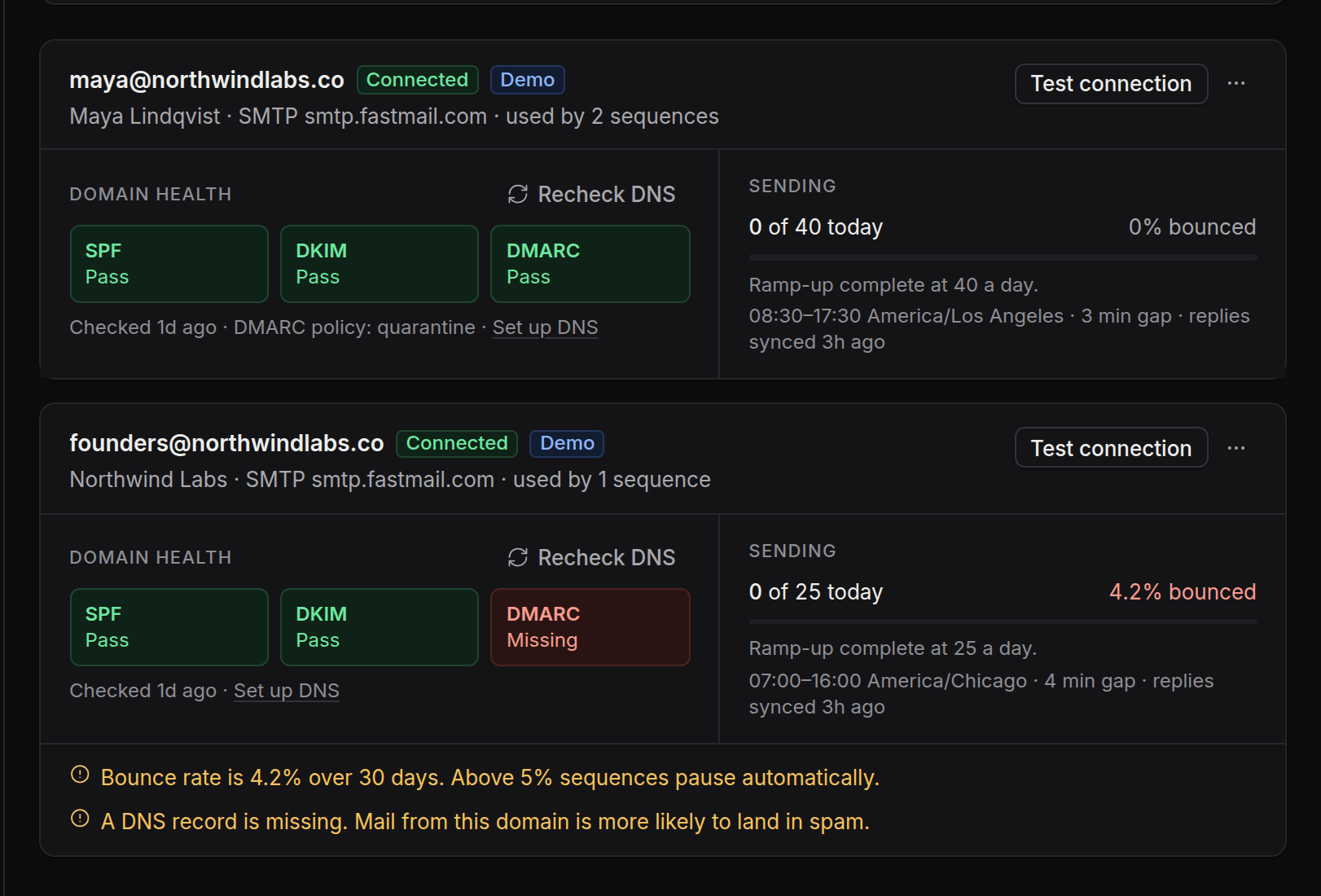
Common problems:
- Two SPF records. A domain can have only one SPF record. Merge them into one:
v=spf1 include:_spf.google.com include:spf.protection.outlook.com ~all. - DKIM not turned on. Google Workspace and Microsoft 365 both need you to generate a DKIM key and switch signing on in their admin consoles, as well as adding the DNS record.
- No DMARC record. Start with a monitoring policy:
v=DMARC1; p=none; rua=mailto:dmarc@yourcompany.com.
2. Check your bounce rate
Sending to addresses that don't exist is the fastest way to lose reputation. Providers read a high bounce rate as a sign of a bought or scraped list.
- Keep hard bounces under 2%. OmniLead verifies emails when you reveal them; for imported lists, only enroll addresses marked Valid.
- Treat Catch-all and Risky addresses with care. Send to them in small batches, after your valid contacts.
- If a sequence reaches a 5% bounce rate (after at least 20 sends), OmniLead pauses it automatically and tells you why. Remove the bad addresses before you resume.
3. Check your volume and ramp-up
A brand-new mailbox that suddenly sends hundreds of emails a day looks like spam, whatever it says.
- New mailboxes: keep Ramp-up on. It starts at 10 emails a day and adds 5 every two days until it reaches your daily cap.
- Daily cap: for cold outreach, 30 to 50 emails a day per mailbox is a sensible ceiling. For more volume, add mailboxes instead of raising the cap. Sequences rotate between them.
- Spacing: keep a gap of at least two minutes between sends so they don't arrive as a burst.
- Sending window: send during the recipient's working hours.
4. Consider a separate sending domain
Many teams send cold outreach from a second domain, such as getyourcompany.com alongside yourcompany.com. If that domain's reputation suffers, your main domain and your team's everyday email aren't affected. Set up SPF, DKIM and DMARC for the new domain, point its website at your main site, and ramp it up slowly like any new mailbox.
5. Check your content
Content matters less than authentication and reputation, but it can tip the balance.
- Write like a person. Short, plain text, one clear question. Avoid heavy HTML, images and several links.
- Keep links few. One link, or none in the first email, is best. Avoid link shorteners.
- Leave open tracking off. It's off by default in OmniLead. Tracking pixels are a common spam signal and are unreliable anyway, because many mail apps load images automatically.
- Personalise for real. Merge tags with sensible fallbacks, such as
{{firstName|there}}, and a first line written for the recipient, not only their name swapped in. - Avoid spam-trigger phrases such as "act now", "risk-free" or "100% guaranteed". The pre-launch checklist flags common ones.
- Keep the footer. Your postal address and one-click unsubscribe help. Providers trust senders who make opting out easy, and the unsubscribe headers are required for volume senders by Gmail and Yahoo.
6. Watch spam complaints
When someone clicks Report spam, it counts heavily against you. Gmail expects complaint rates to stay well under 0.3%. To keep complaints down:
- Target tightly. The more relevant the email, the fewer complaints.
- Make unsubscribing easier than complaining. The one-click unsubscribe does this.
- Stop after a few follow-ups. Three or four emails in a sequence is plenty.
7. Test before a big send
Before launching to a large list, send the first step to a few mailboxes of your own at different providers (a Gmail and an Outlook address, for example) and check where it lands. If it lands in spam there, it will for prospects too.
Recovering a damaged reputation
If your domain's reputation has already dropped:
- Pause all sequences from the affected mailboxes.
- Fix authentication and remove unverified addresses.
- Resume at a low volume, 10 to 20 a day, to your most engaged and best-verified contacts.
- Increase slowly over two to four weeks while watching bounces and replies.
Can OmniLead warm up my mailbox automatically?
OmniLead ramps up sending volume gradually, but it doesn't exchange fake emails with other mailboxes to simulate engagement. Those networks are against most providers' terms and can backfire.
Why does my email land in the Promotions tab?
Promotions is a Gmail tab, not spam. Plain-text emails with few links and no images are more likely to land in the primary inbox.