Find companies and decision-makers
Search companies by industry, size and location, find the people who decide, and reveal verified contacts with a source for each one.
The Leads lens finds companies you can sell to and the people inside them who make the decision. Every contact comes from a public page, such as the company's own team page, or is ranked from the email pattern the company really uses.
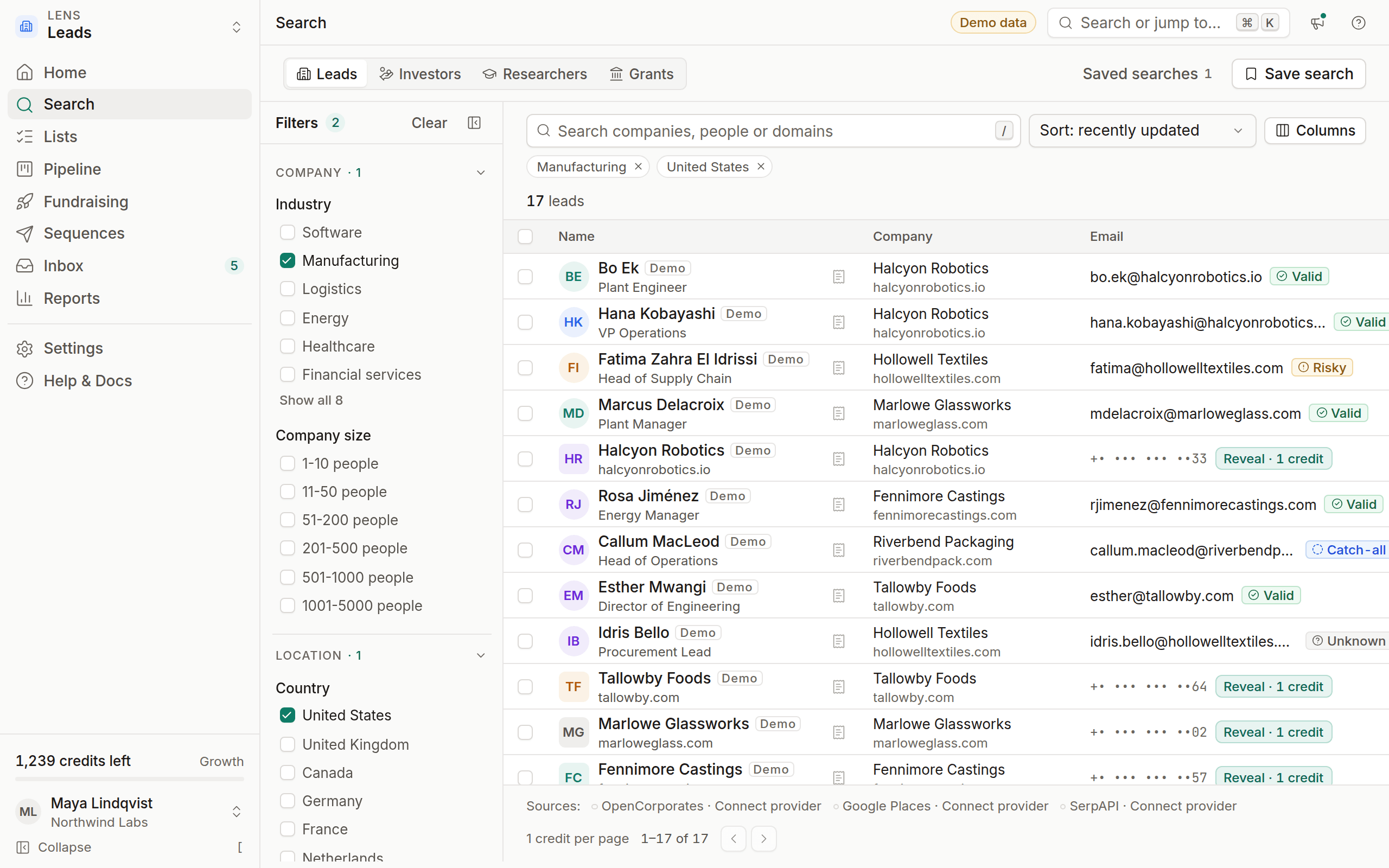
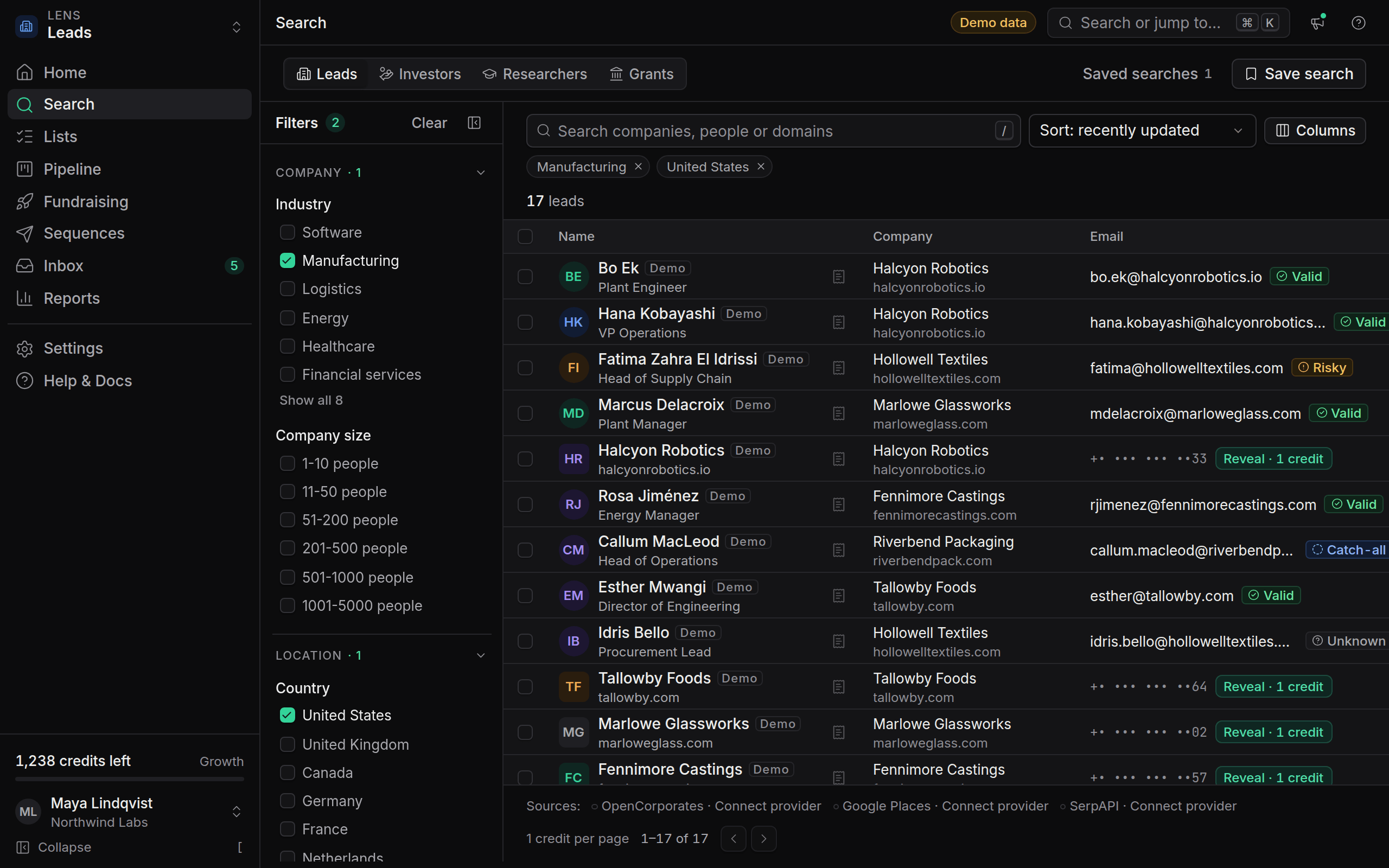
Start a leads search
Switch to Leads
Pick Leads in the lens switcher, press ⌘ 1, or choose Leads in the segmented control at the top of the search page.
Describe who you want
Type a company name, a domain such as
acme.io, or a keyword like "logistics software". Leave it empty to search by filters alone.Add filters
Open the filter groups on the left. Start broad with Industry and Location, then add Job title.
Review the first page
Each row shows the company, the person and their role, a masked contact and a provenance icon.
Each page of results costs 1 credit. Filters apply to the page you're on, so refine them before you load the next page.
Filters
Filters are grouped so the panel stays short. The number next to Filters tells you how many are active, and Clear all resets them.
How contacts are found
OmniLead finds leads contacts in three ways, and the provenance popover tells you which one applies to each value.
- Published on the company's site. The crawler reads public pages such as home, about, team, contact, impressum and the footer. When an email or phone is published there, you see that page as the source.
- Ranked from the company's real pattern. If a person's email isn't published but other addresses on the same domain are, OmniLead learns the pattern the company uses (for example
first.last@) and ranks the likely addresses for that person. The top candidate is verified before you see it. - Company registries and listings. Registered company details come from OpenCorporates, and business listings (address, phone, website) from Google Places when your workspace has those providers connected.
OmniLead never guesses an address with a language model and never scrapes LinkedIn. If none of the three methods finds a contact, the row says so and the reveal isn't charged. See Why a contact can't be found.
Reveal a contact
Click Reveal · 1 credit
The button sits in the contact column of the row, or at the top of the lead drawer.
Read the verification badge
Valid is safe to send. Risky and Catch-all need judgment. Invalid is refunded and never enrolled.
Check the source
Click the provenance icon to see the page the email was found on, or the pattern it was ranked from.
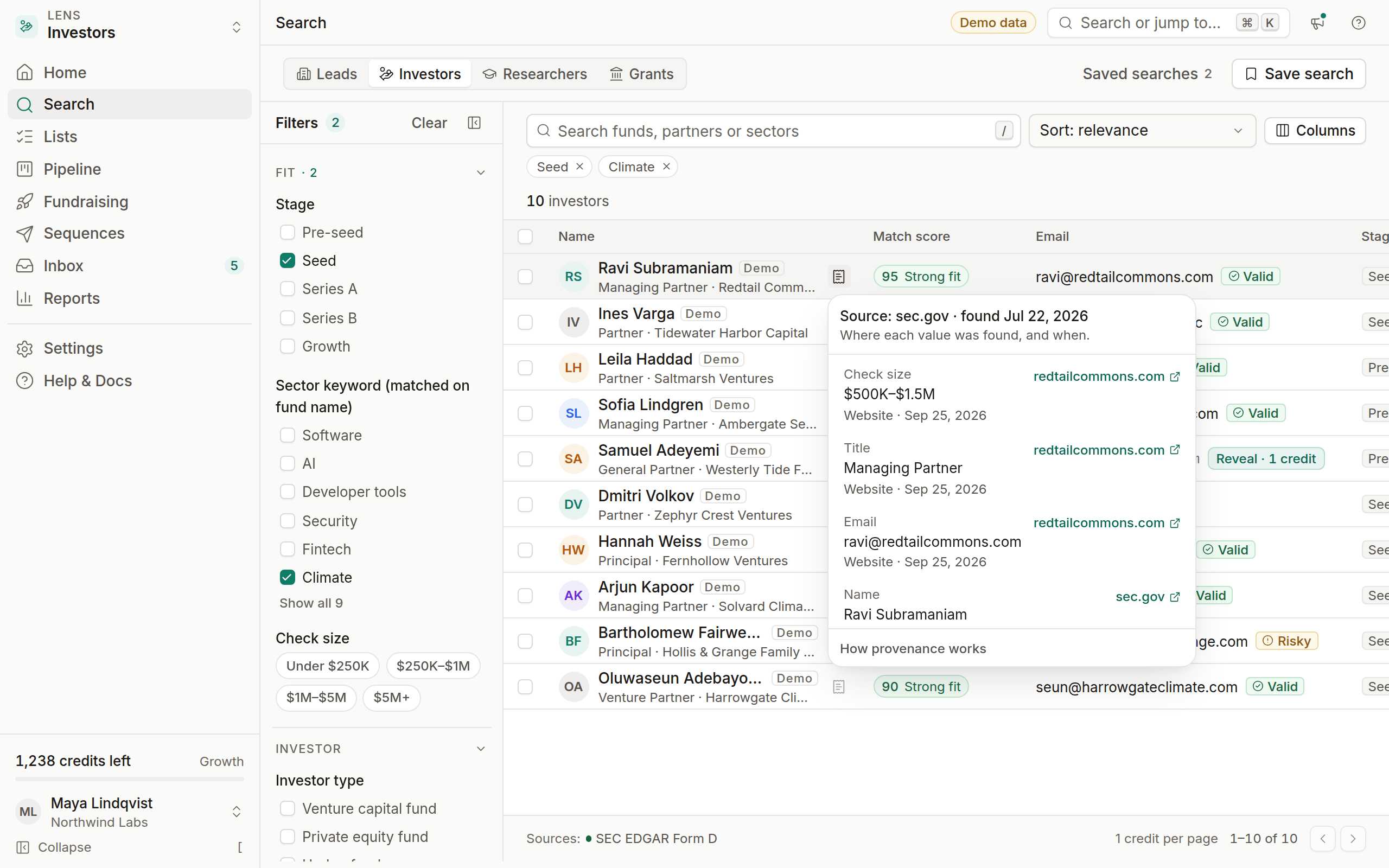
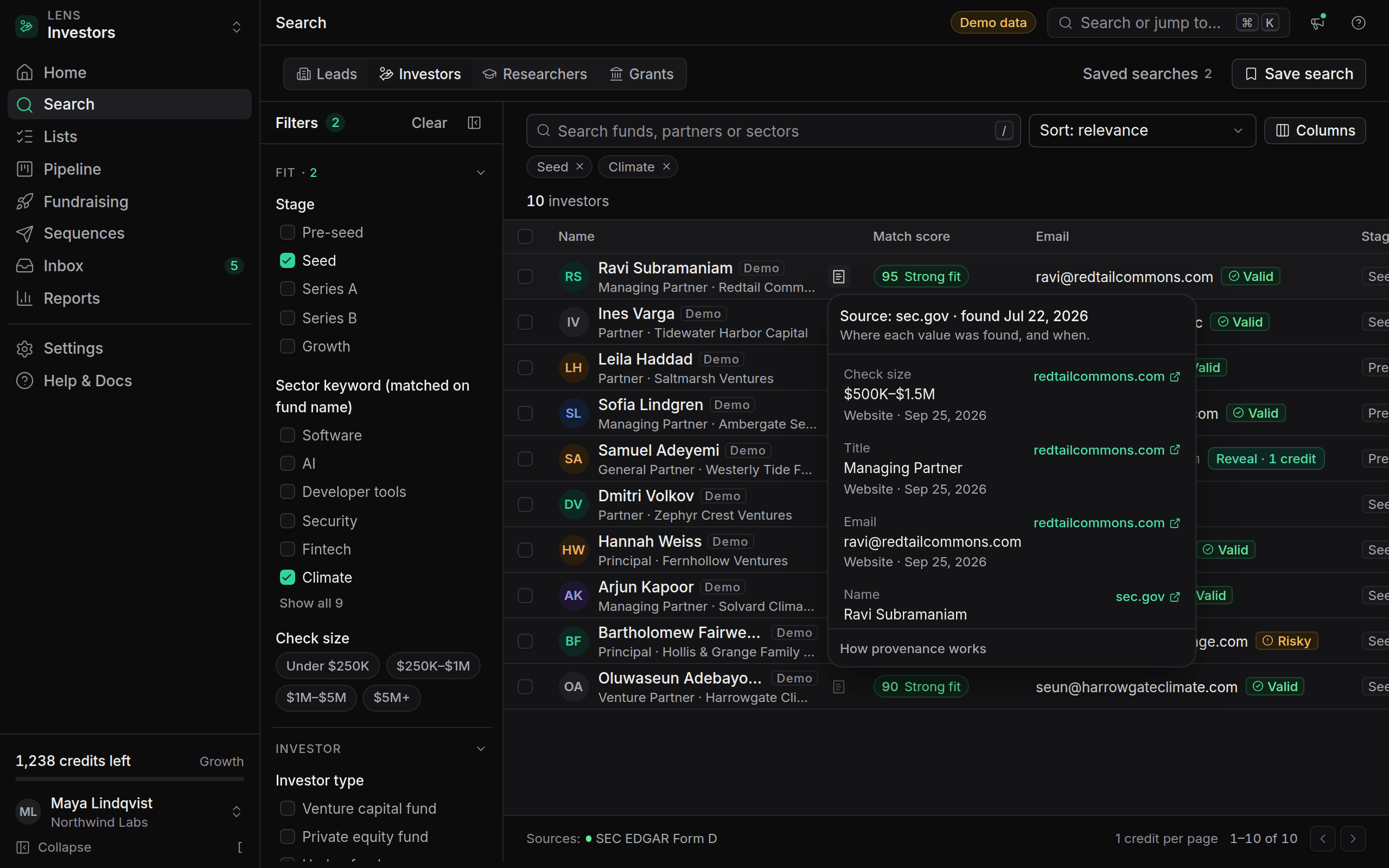
Revealing the same person again is free, for anyone in your workspace. To reveal many at once, select rows and choose Reveal in the action bar. The confirmation tells you how many credits it will use before anything is charged.
Save and act on results
- Add to a list to collect prospects you'll review later.
- Add to pipeline to start tracking a conversation.
- Enroll in sequence to start outreach. Only revealed contacts with a sendable status can be enrolled.
Saved leads keep their source lens tag, so you can filter your pipeline to people you found with the Leads lens.
When a provider isn't connected
OpenCorporates and Google Places need API keys. If your workspace hasn't added them, their filters show Connect provider and those results are left out. Search still works with the crawler and pattern data. An admin can add keys in Settings → Workspace.