Authenticate with API keys
Create live and test API keys, send them as bearer tokens, and keep them safe.
Every API request is authenticated with an API key sent as a bearer token. Keys belong to a workspace, not to a person, so an integration keeps working when a teammate leaves. The API is available on the Agency plan.
Create a key
Owners and admins can create keys.
Open API settings
Go to Settings → API.
Start a new key
Click Create API key.
Name it and choose the mode
Give the key a name that says where it's used, such as "HubSpot sync" or "Staging", and choose Live or Test.
Create and copy
Click Create key. Copy the key and store it in your secrets manager or environment variables.
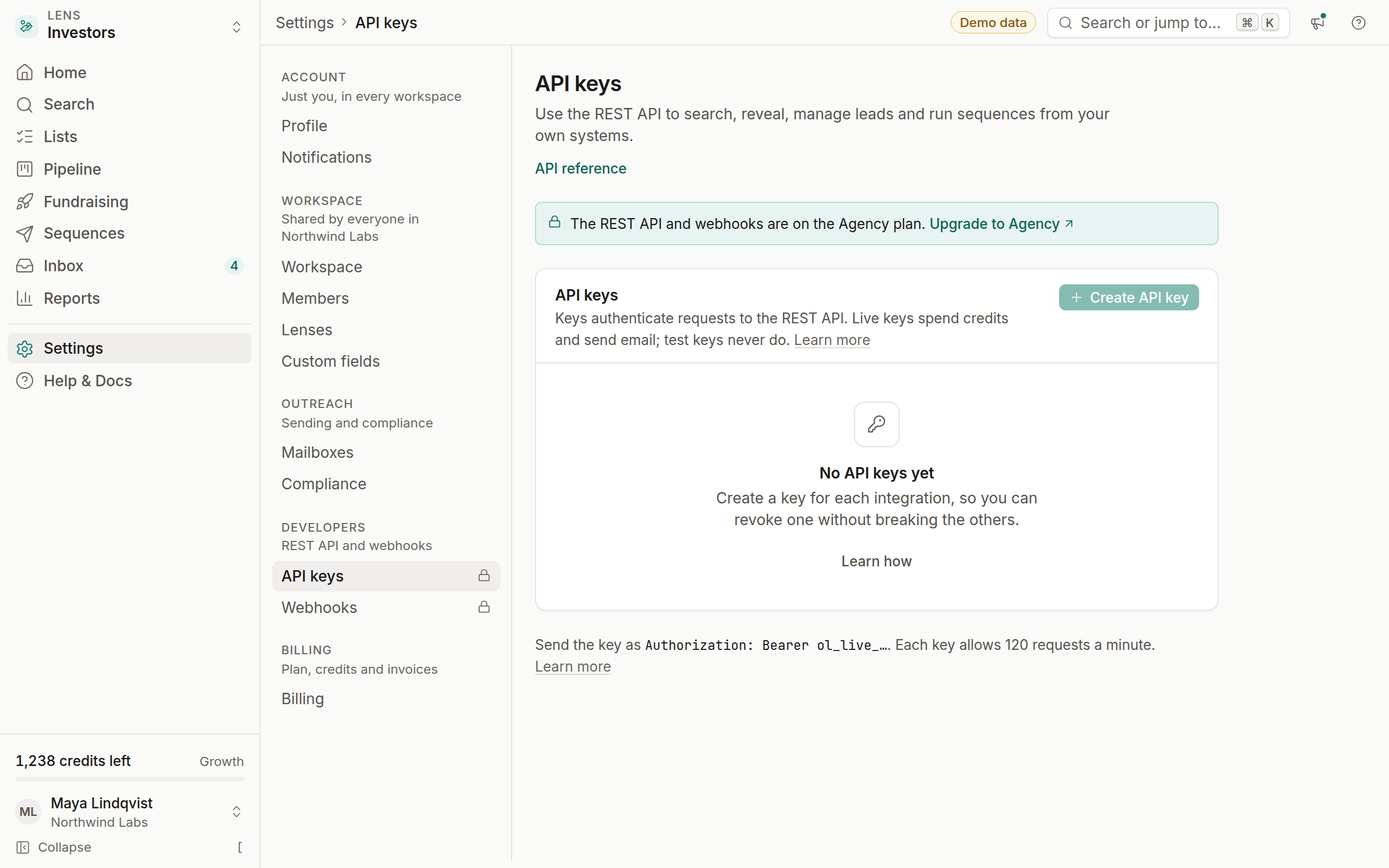
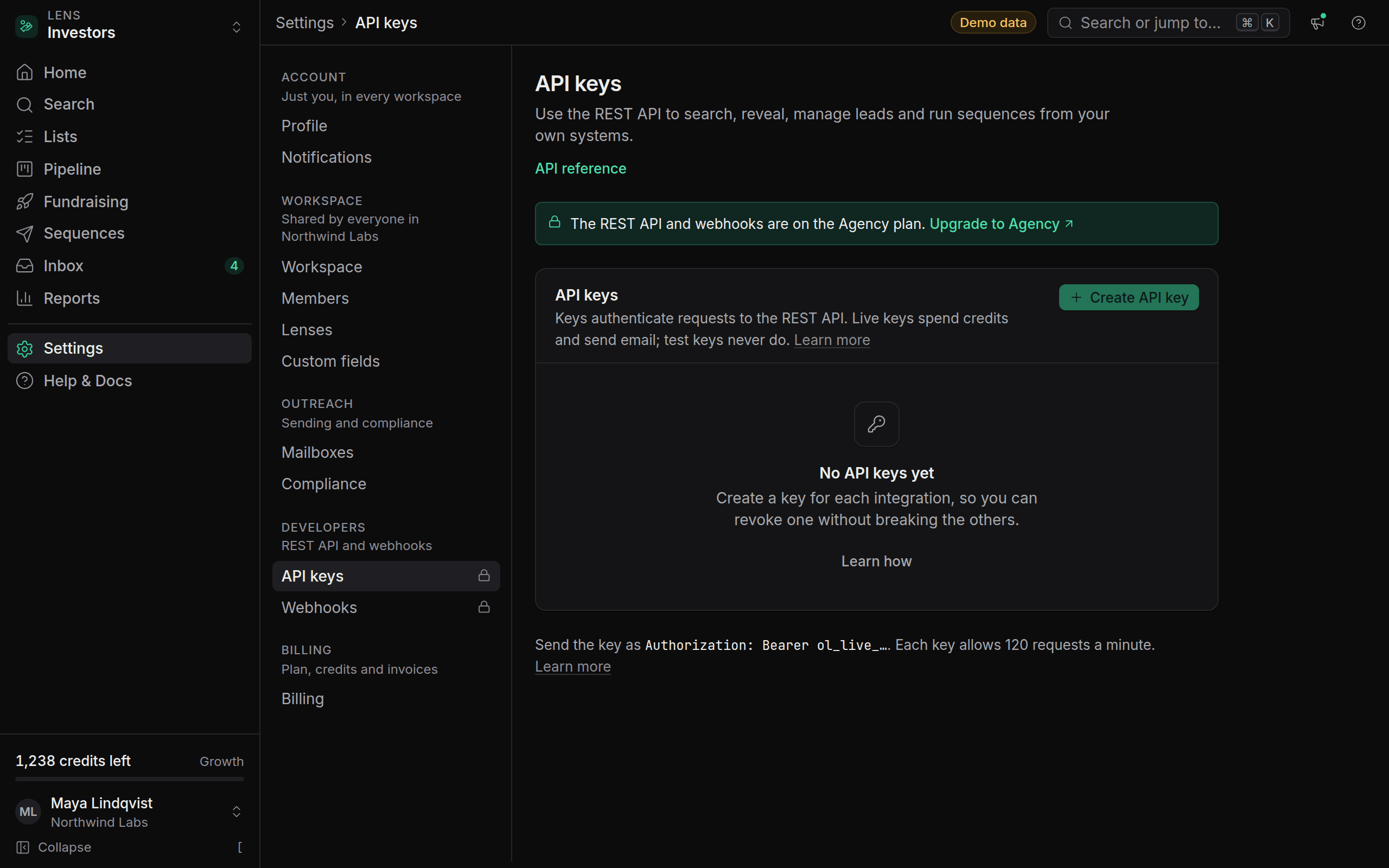
The list in Settings → API shows each key's name, its first characters (for example ol_live_4f9a…), its mode, who created it and when it was last used.
Live and test keys
Test keys work against your real workspace data, so writes and deletes are real. They're designed to let you build and test an integration without spending credits or emailing anyone.
Send the key
Put the key in the Authorization header with the Bearer scheme, on every request:
curl https://omni.cloudgens.net/api/v1/credits \
  -H "Authorization: Bearer $OMNILEAD_API_KEY" \
-H "OmniLead-Version: 2026-09-28"const res = await fetch("https://omni.cloudgens.net/api/v1/credits", {
headers: {
Authorization: `Bearer ${process.env.OMNILEAD_API_KEY}`,
"OmniLead-Version": "2026-09-28",
},
});
const balance = await res.json();import os
import requests
resp = requests.get(
"https://omni.cloudgens.net/api/v1/credits",
headers={
"Authorization": f"Bearer {os.environ['OMNILEAD_API_KEY']}",
"OmniLead-Version": "2026-09-28",
},
timeout=30,
)
balance = resp.json()Keys in query strings or request bodies aren't accepted. Requests must use HTTPS; plain HTTP is refused.
When authentication fails
A missing, malformed or revoked key returns 401:
{
  "error": {
    "type": "authentication_error",
    "code": "authentication_failed",
    "message": "No valid API key provided. Send it as `Authorization: Bearer ol_live_…`.",
    "doc_url": "https://omni.cloudgens.net/docs/api/errors#authentication_failed"
  }
}
A valid key on a workspace that isn't on Agency returns 403 with the code permission_denied. If a workspace moves off Agency, its keys stop working until it upgrades again; they aren't deleted.
Revoke a key
Find the key
In Settings → API, find the key by its name or prefix.
Revoke it
Click Revoke, then Revoke key to confirm.
Revocation is immediate: the next request with that key gets a 401. Creating and revoking keys is recorded in the audit log.
Keep keys safe
- One key per integration. If one leaks, you revoke it without breaking the others, and the audit log shows which integration did what.
- Keep keys on servers. Never put a live key in browser code, a mobile app or a public repository.
- Rotate regularly. Create the new key, deploy it, then revoke the old one. There's no downtime because both keys work until you revoke.
- Use test keys in development and CI.
If a key is exposed, revoke it straight away, then check the audit log and the credit history for activity you don't recognise.
Can I limit a key to read-only?
Not yet. Every key can read and write. Use test keys where you don't need to spend credits or send email.
Do API calls count against my seats?
No. Keys aren't seats. Credits spent through the API come from the workspace balance.
How many keys can I create?
There's no fixed limit. Each key has its own rate limit of 120 requests a minute.