Switch between lenses
Change lens in under a second, learn what each lens remembers and what's shared, and how lenses work on each plan.
OmniLead has four lenses: Leads, Investors, Researchers and Grants. Switching lens changes what you search for and how the app adapts, without reloading the page and without touching your CRM.
Switch lenses
You can switch in three places. Use whichever is closest.
From the sidebar
Click the lens switcher at the top of the sidebar. It shows the current lens icon and name. Pick another lens from the popover.
From the search page
Use the segmented control above the results: Leads · Investors · Researchers · Grants.
From the command palette
Press ⌘ K and type "Switch to", for example Switch to Investors.
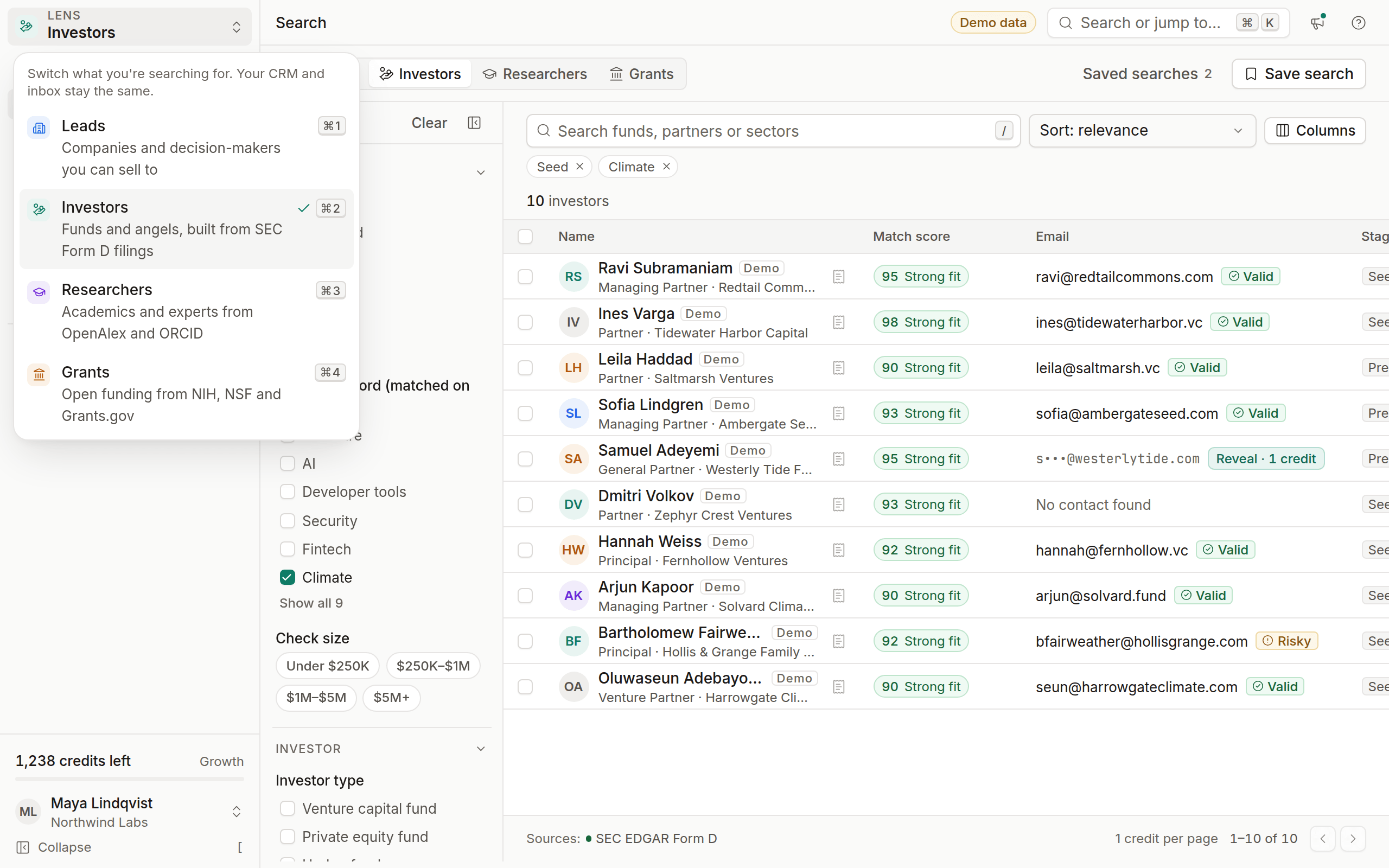
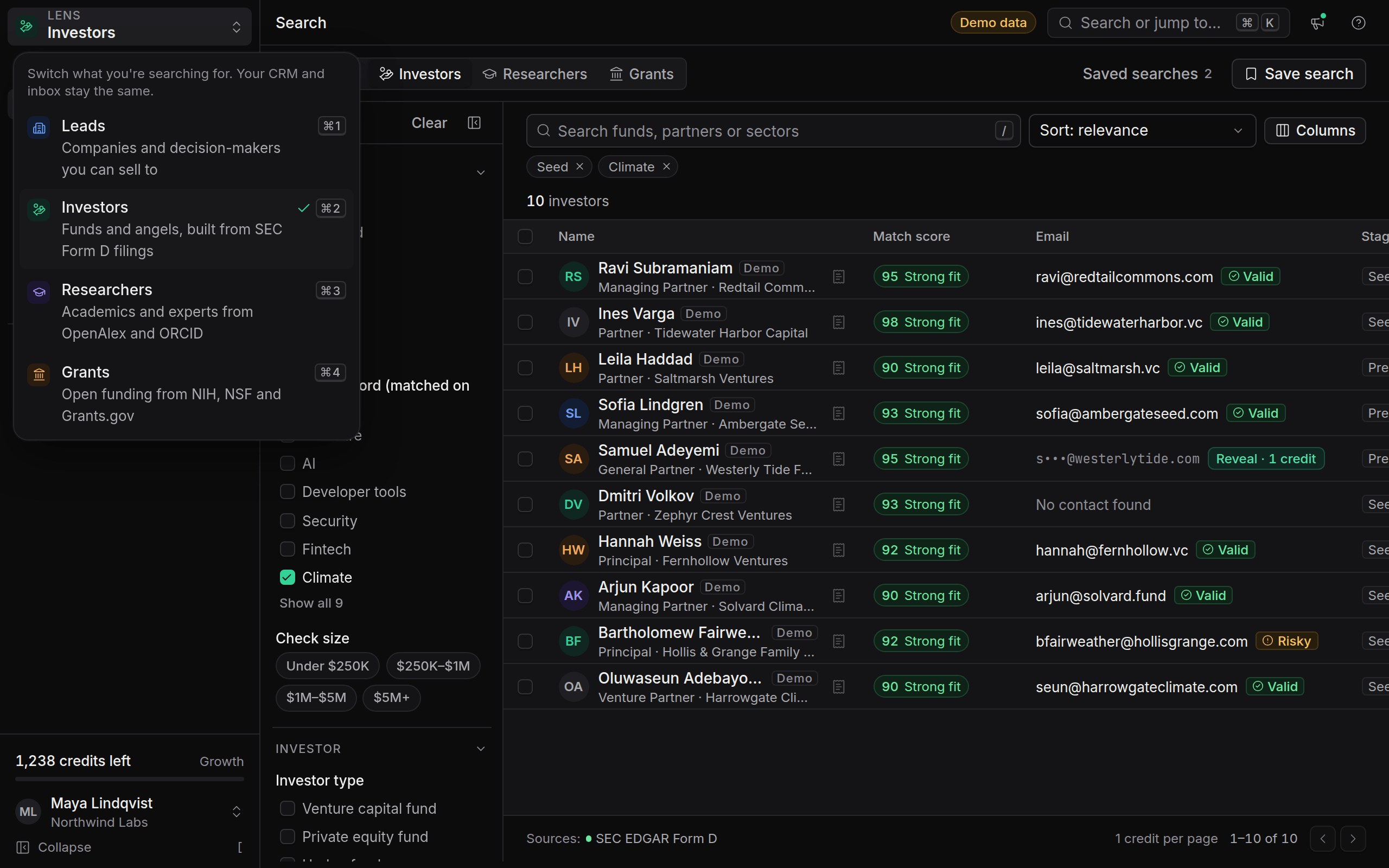
Keyboard shortcuts
On Windows and Linux, use Ctrl. Shortcuts work everywhere in the app except while you're typing in a text field.
What changes when you switch
- Search: the filters, placeholder, templates and result columns.
- Home: the dashboard widgets and suggestions.
- Empty states and templates: sequence templates and suggestions match the lens.
What each lens remembers
Each lens keeps its own:
- Last filters and query, so switching back puts you where you were
- Sort order
- Saved searches
Switch from Investors to Grants and back, and your investor filters are exactly as you left them.
What's shared across lenses
Your workspace is one CRM, whichever lens you're in:
- Leads and companies: a lead saved from any lens appears in lists, pipelines and the companies view
- Pipelines, notes, tasks, tags and custom fields
- Sequences and the unified inbox
- Credits: one balance for every lens
- Suppression list and compliance settings
Each saved lead is tagged with the lens it came from, such as Investors. Filter a list or pipeline by source lens to separate fundraising from sales.
Lenses on each plan
Locked lenses
A lens outside your plan still appears in the switcher with a small lock. Click it and OmniLead opens a preview instead of an error:
- Example results, clearly labelled Example
- Three things the lens is good for
- The plan that includes it
- One button, for example Upgrade to Growth
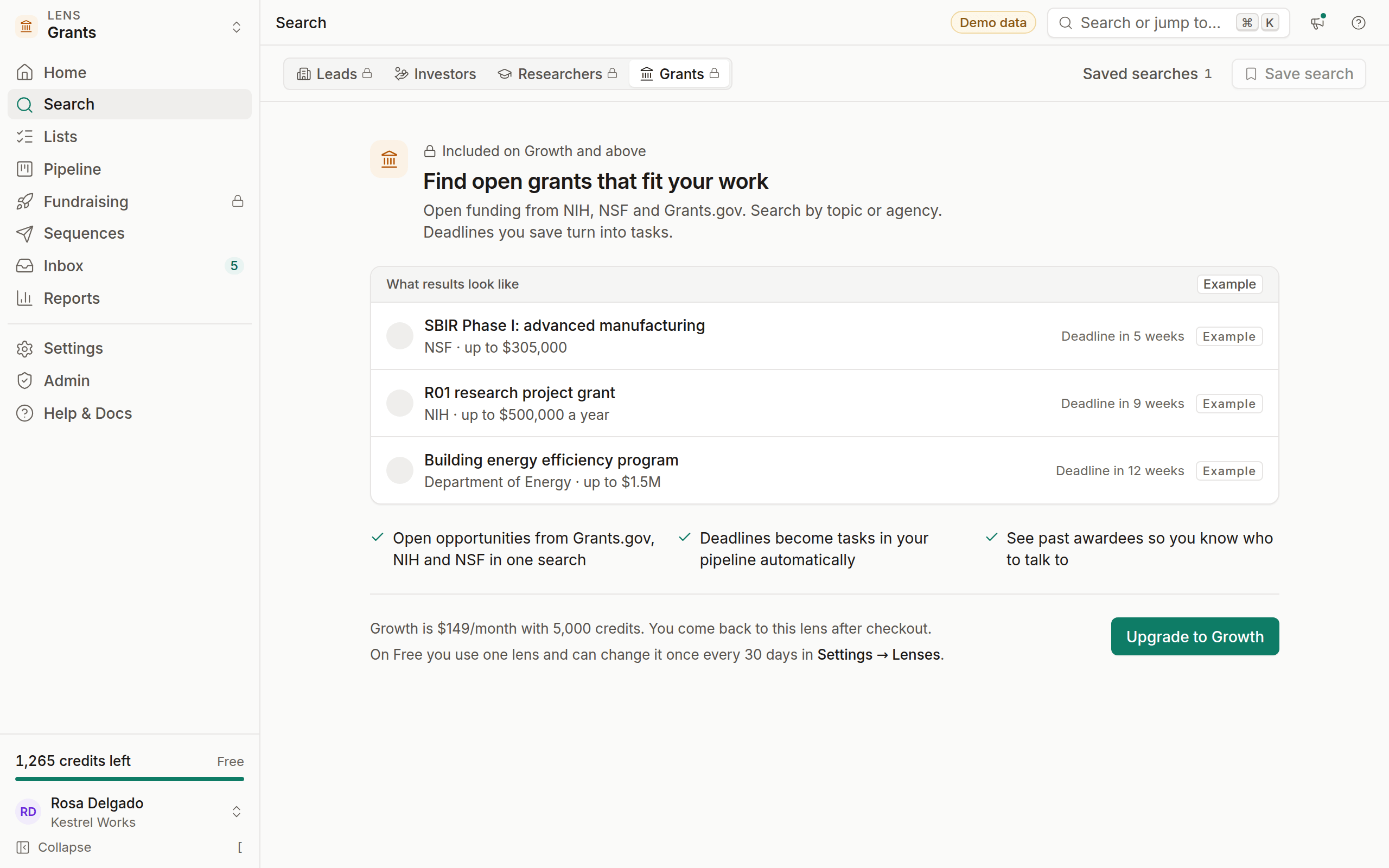
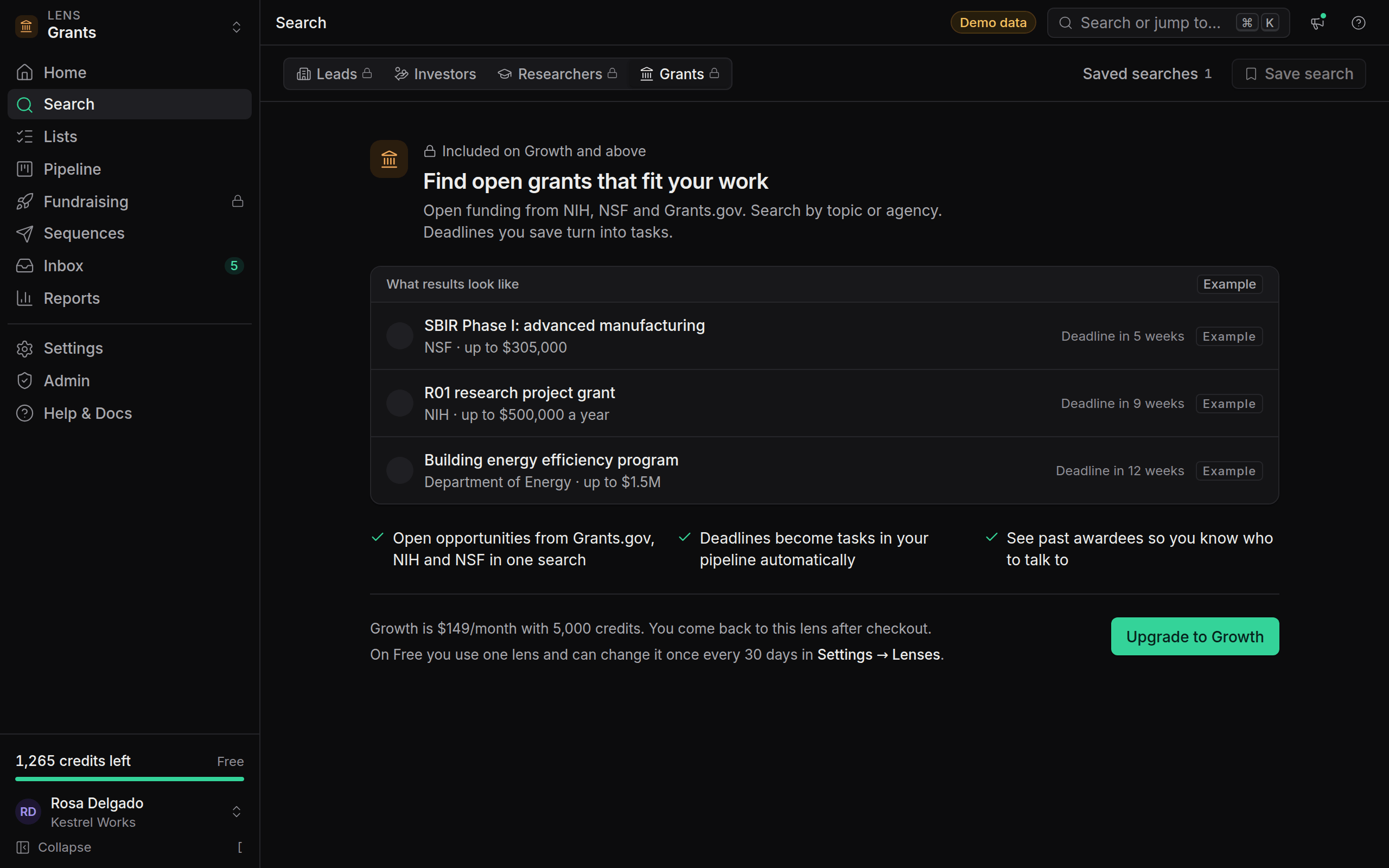
Clicking the button opens Stripe Checkout. When payment completes you return to the lens you were previewing, ready to search.
Change your free lens
On the Free plan you can change your lens once every 30 days.
Open lens settings
Go to Settings → Lenses.
Pick the new lens
Choose the lens you want. The page shows the date you last changed it.
Confirm
Click Change lens. The new lens is available right away.