Lead profiles
Everything in the lead drawer, from verified contacts and provenance to the activity timeline, and how to open a lead as a full page.
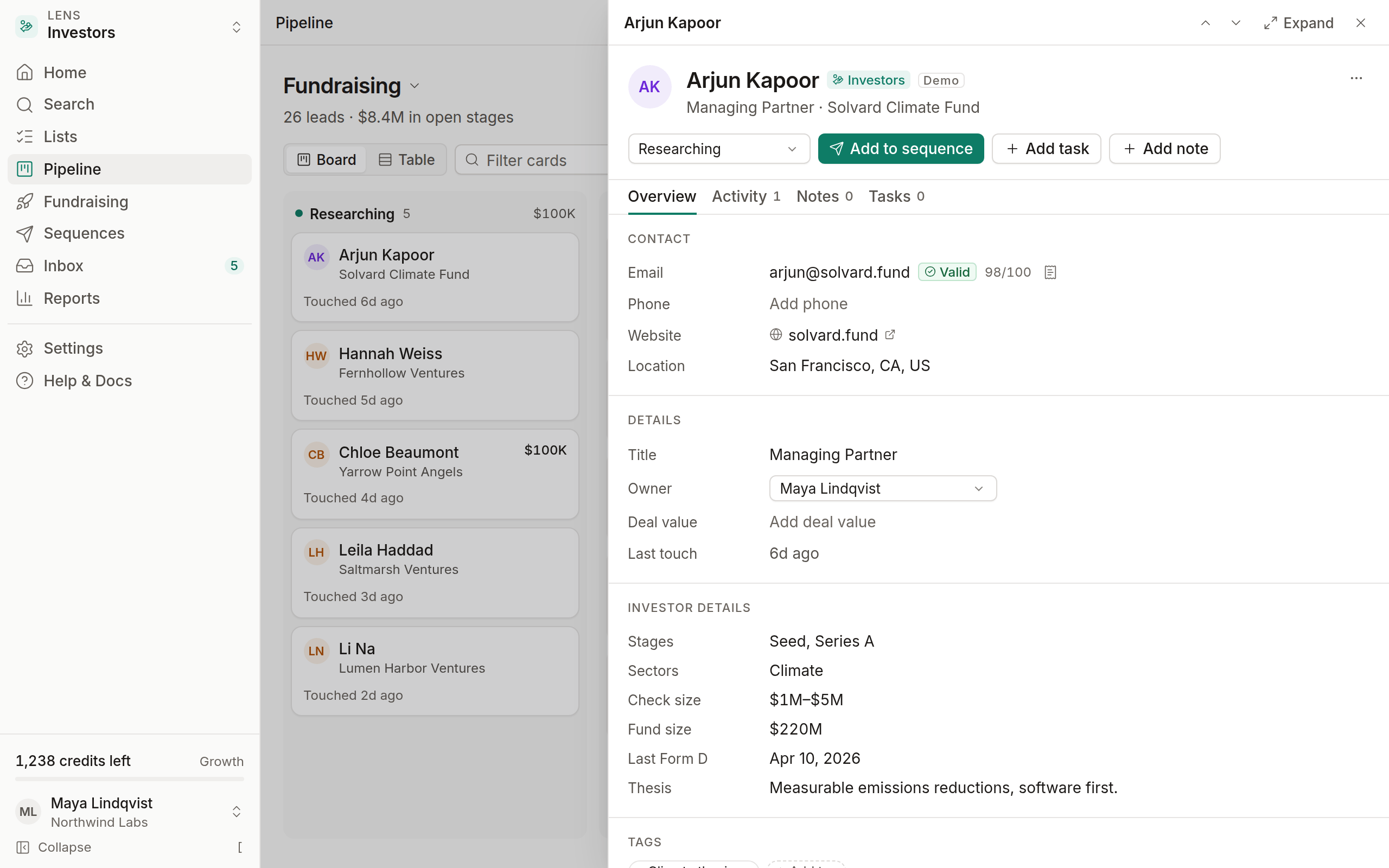
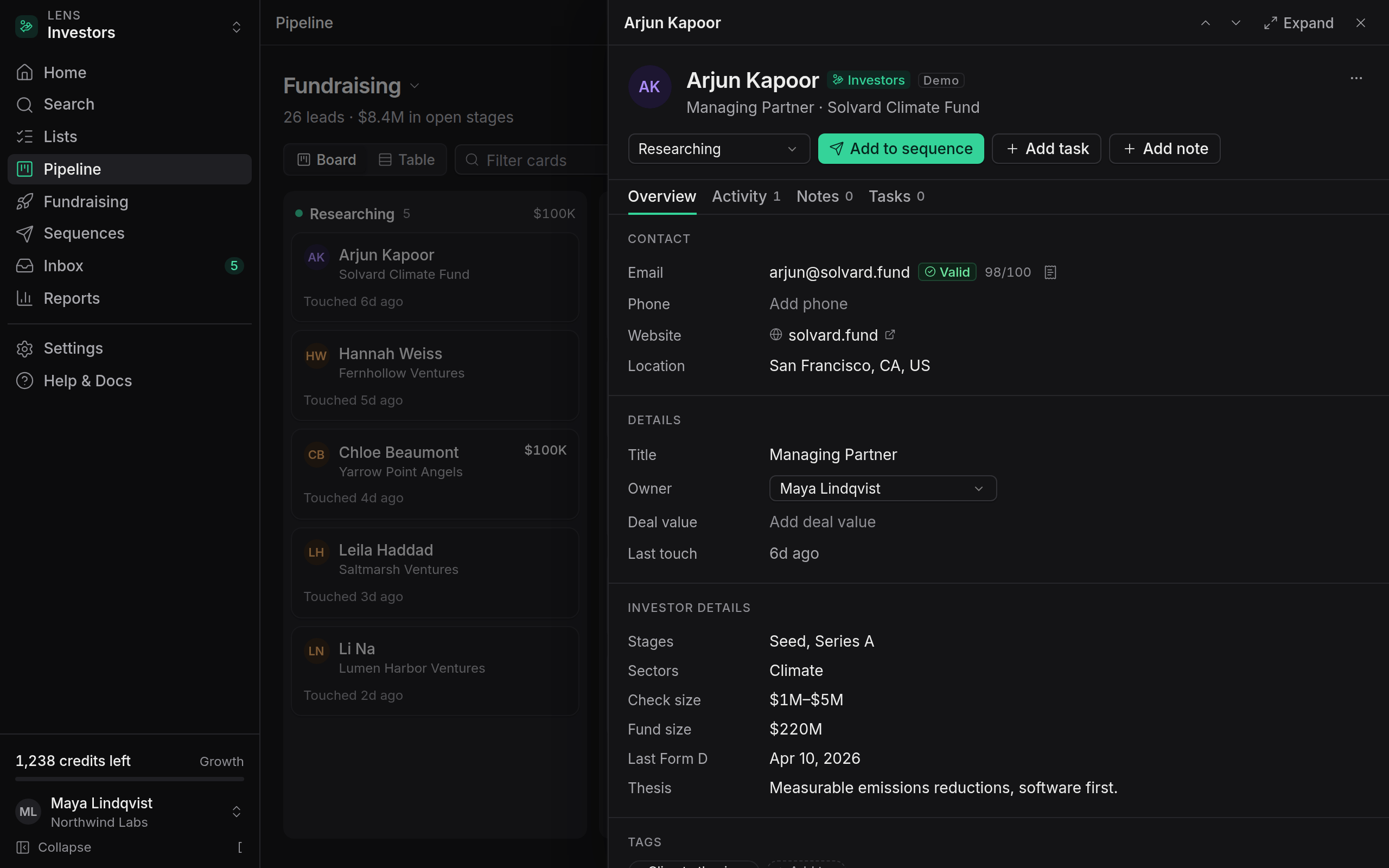
Every lead has a profile. Click a lead anywhere in OmniLead, whether in search, a list, the pipeline or the inbox, and the profile opens as a drawer on the right, so you never lose your place.
Open a lead
- Click a name anywhere to open the drawer.
- Press J and K in a table to move between rows, and Enter to open one.
- Click Expand at the top of the drawer to open the lead as a full page. The full page has its own address, such as
/app/leads/…, that you can share with teammates. - Press Esc to close the drawer.
The header
The top of the profile shows the name, role, organization and avatar, along with:
- Stage in the lead's pipeline, editable from the menu. Stages in other pipelines are under Details.
- Quick actions: Add to sequence, Add task and Add note
- More actions: Add to list, Export this lead and Delete lead
If the contact is still masked, the header shows Reveal · 1 credit.
Overview
The Overview tab holds the lead's details:
- Contact: email and phone with a verification badge (Valid, Risky, Catch-all, Invalid or Unknown) and a provenance icon. Click the icon to see the source. Website and location follow.
- Details: title, Owner (the teammate responsible for the lead), Deal value, stages in other pipelines and the last touch
- Lens details: for investors, stages, sectors, check size and the last Form D; for researchers, institution, works, topics and recent work; for grants, agency, deadline and award
- Tags
- Custom fields, editable inline
- Sequences the lead is enrolled in
- Consent and lawful basis, used for compliance
- Sources: where each piece of data came from
Edit a field such as the title or phone by clicking it. Your edits are marked Added by you in the field's provenance.
Activity timeline
The Activity tab lists everything that has happened with this lead, newest first:
- Emails sent and received, with opens only if you turned on open tracking
- Sequence enrollments, pauses and completions
- Stage changes and owner changes
- Notes and completed tasks
- Reveals and verification results
- Unsubscribes, bounces and suppressions
Use All, Emails, Notes and System at the top to filter the timeline.
Notes and tasks
The Notes and Tasks tabs let you record context and plan follow-ups without leaving the profile. See Notes, tasks and tags.
Compliance details
Every lead stores:
- Source: where the lead came from (a lens search, a CSV import or manual entry)
- Lawful basis: usually Legitimate interest for B2B outreach
- Suppression status: whether the address is on your suppression list or opted out globally
- Country, used by the per-country sending rules
If a person asks what data you hold about them, open their profile and choose Export this lead from More actions. The export includes every field with its source.
Delete a lead
Open More actions at the top right and choose Delete lead, then confirm. The lead, its notes, tasks and history are removed from this workspace. This can't be undone, and credits spent revealing it aren't refunded.
Deleting a lead doesn't add it to your suppression list. If the person asked not to be contacted, select the lead in a table and choose Delete → Suppress and delete instead, so they can't be re-added by an import or search later.