Build a sequence
Create a sequence of emails and waits, preview it for a real lead, pass the pre-launch checklist and launch.
A sequence is a series of email steps and wait steps that OmniLead sends to each enrolled lead, from your connected mailboxes, until the lead replies or the sequence ends.
Create a sequence
Open Sequences
Click Sequences in the sidebar.
Click New sequence
Pick Blank sequence or a template for your lens, such as Seed intro, Problem-first intro or Expert survey recruitment. Use Template lens to see another lens's templates.
Name it
Use a name your team will recognize, such as "Seed round – climate funds", then click Create sequence.
Choose mailboxes
In the builder's Settings tab, under Mailboxes, pick one mailbox, or several to rotate sends between them.
Add steps
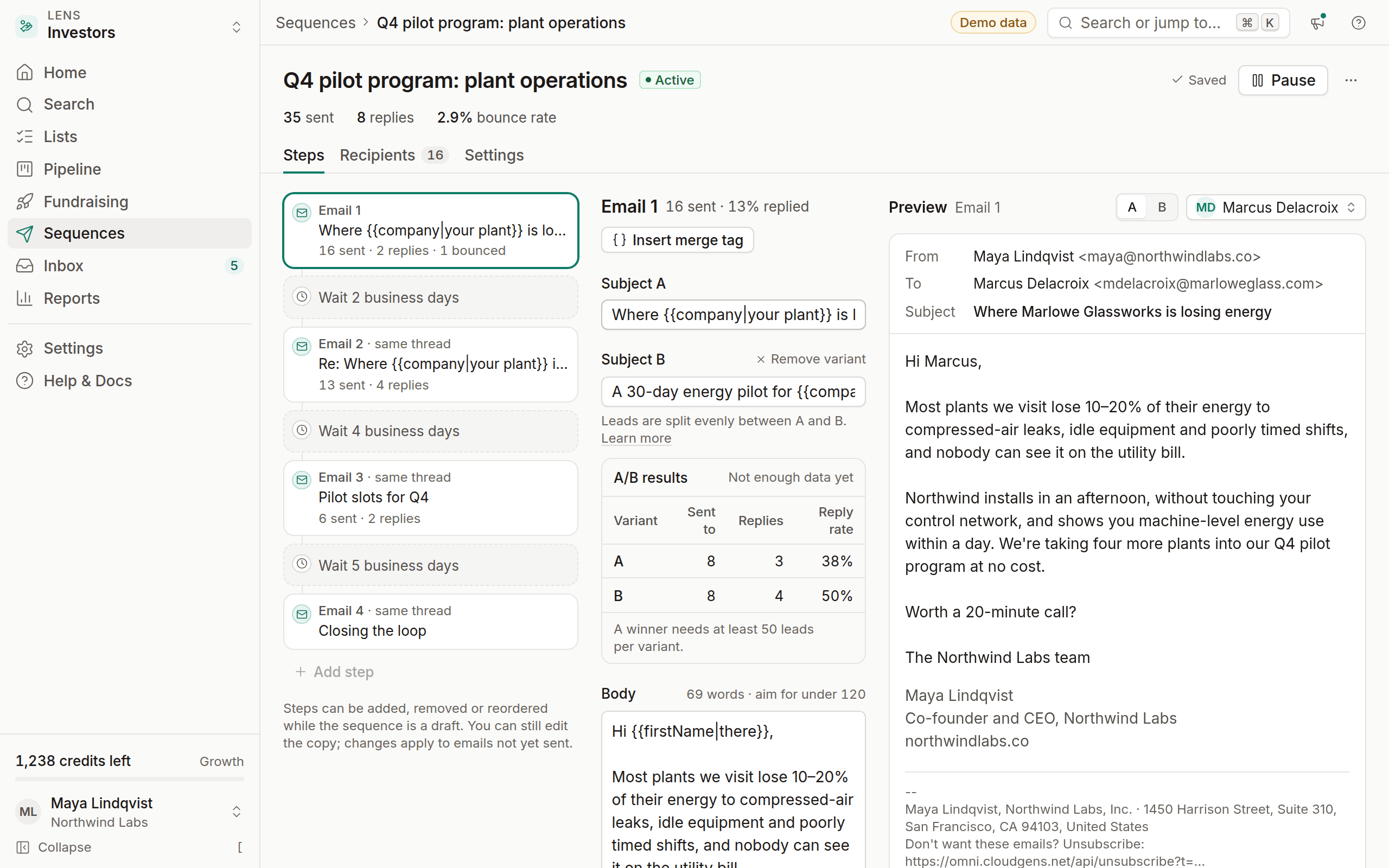
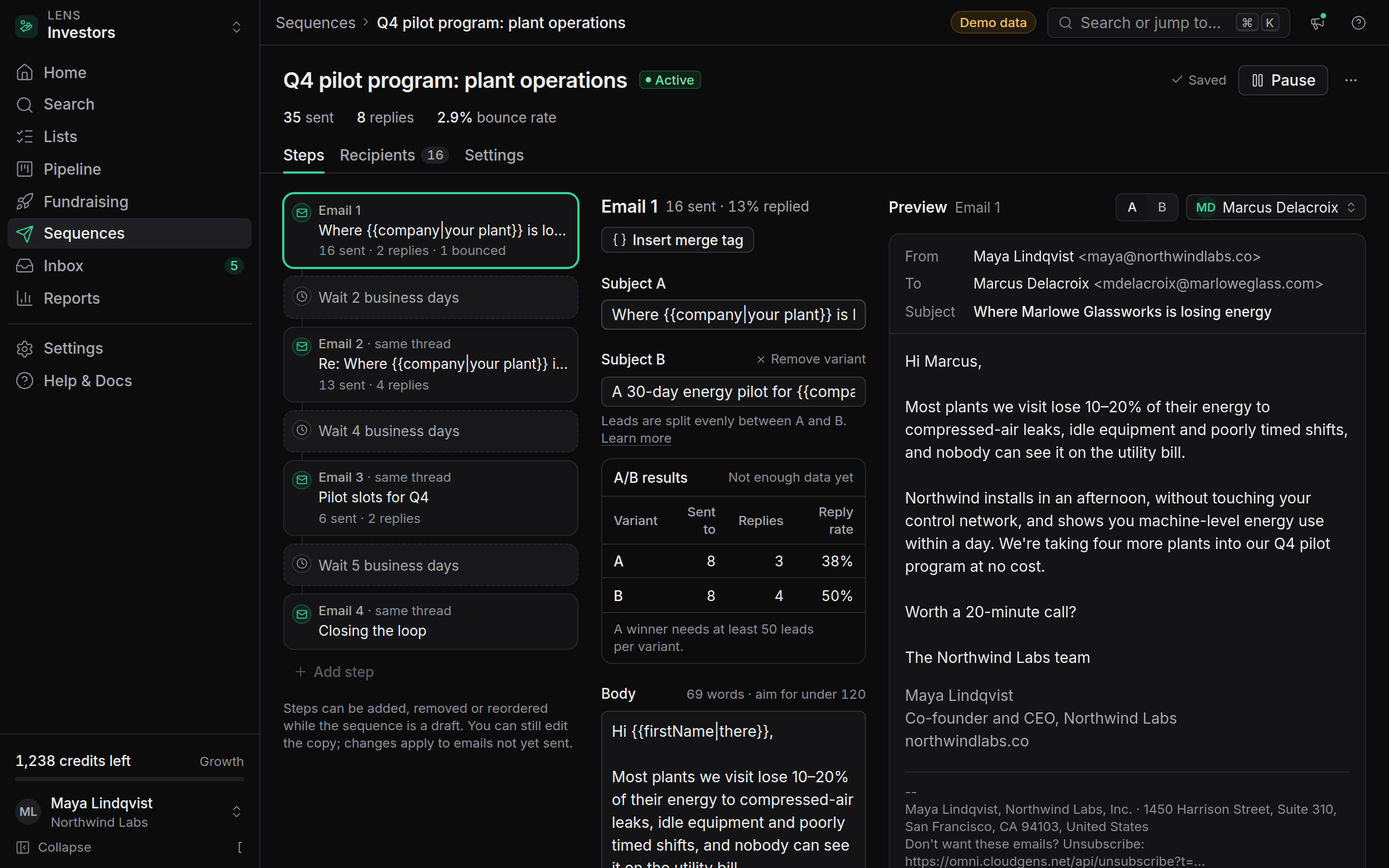
The Steps tab shows your sequence as a vertical timeline. Click Add step and choose:
- Email: a message with a subject and body
- Wait: a pause before the next step, in days
A typical sequence is short: an opening email, a wait of 3 business days, a follow-up, a wait of 4 business days, and a final short note. On the Free plan, sequences can have up to 2 steps.
Write an email step
Write the subject
Keep it short and specific. On Growth and Agency you can add a second subject to A/B test it.
Write the body
Plain, personal and short. Aim for under 120 words in the first email.
Insert merge tags
Click Insert merge tag and pick a field, such as
{{firstName|there}}or{{company}}. See Merge tags reference.Choose threading
Follow-ups are sent as replies in the same thread by default, using the
In-Reply-ToandReferencesheaders. Turn Send as new thread on to start a fresh thread with its own subject.
Business days
Turn on Business days only in the Settings tab and wait steps skip Saturdays and Sundays. Combined with each mailbox's sending window, emails arrive during working hours in the time zone you set.
Preview for a real lead
The right side of the builder shows a live preview. Pick any enrolled lead, or a lead from your workspace, from the menu above it. The preview shows the email exactly as that person will receive it: merge tags filled in, fallbacks applied, and the compliance footer.
If a merge tag has no value and no fallback, the preview highlights it in red. That tag is left out of the email for that lead, so add a fallback or fill in the field before you launch.
The pre-launch checklist
Launch sequence stays disabled until every item on the checklist is green.
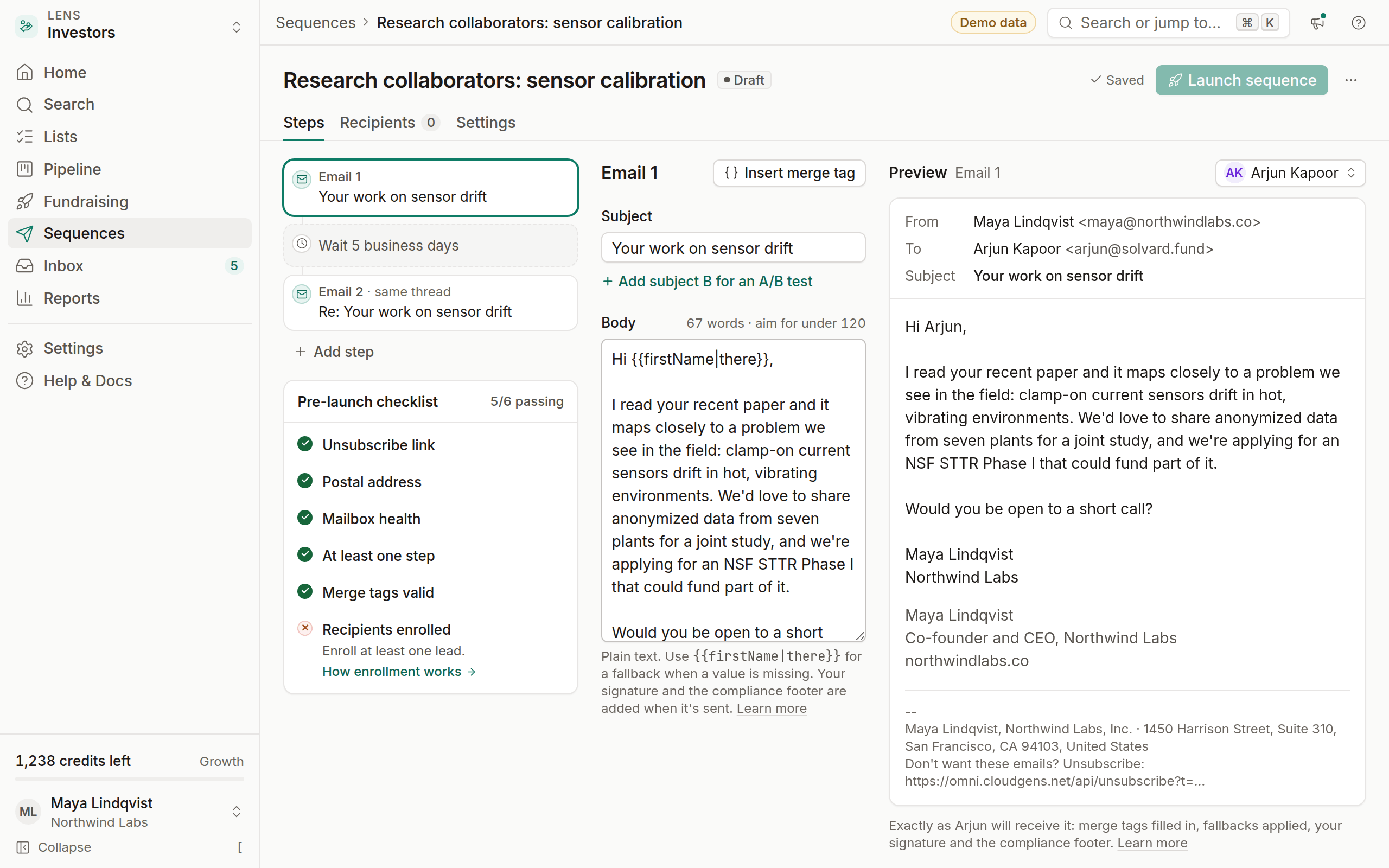
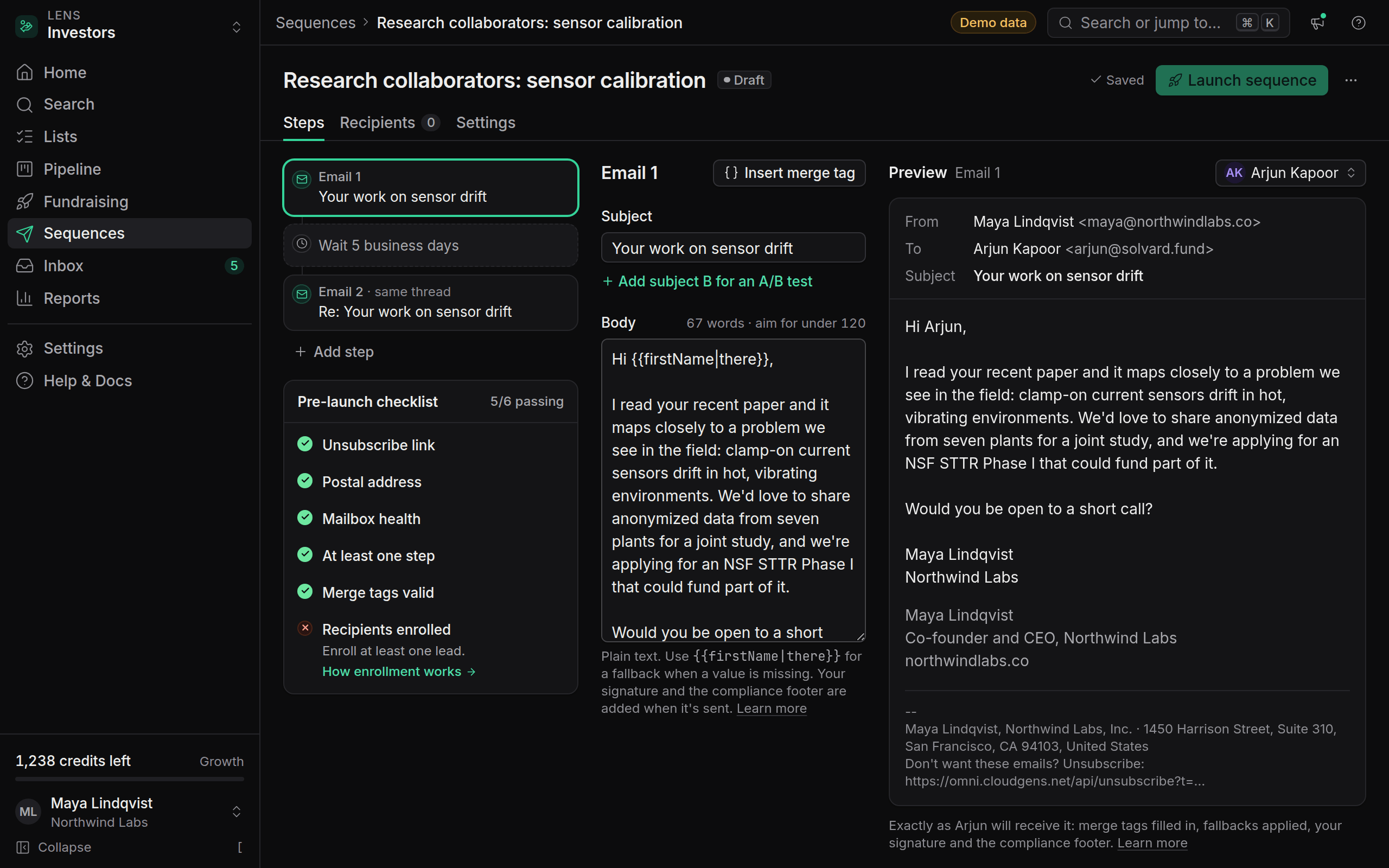
Each failing item has a link to the fix.
Enroll leads and launch
Add leads
Click Enroll leads and enroll from a List, a Tag, a Pipeline stage or Specific leads. You can also select leads in any lead table and choose Enroll in sequence in the action bar.
Review skipped leads
OmniLead lists the leads it won't enroll under Skipped, each with the reason, such as no revealed email, an Invalid address, a suppressed address or a country rule.
Launch
Click Launch sequence. Sending starts in the next sending window.
What happens after launch
- Replies stop the sequence for that lead when Stop on reply is on (the default), and the lead shows as Replied. Out-of-office replies don't.
- Bounces mark the address Invalid and add it to your suppression list.
- Unsubscribes take effect immediately, for every sequence in your workspace.
- If the sequence's bounce rate reaches 5%, it pauses automatically. See Auto-pause.
You can pause, resume or edit a running sequence at any time. Edits apply to emails not yet sent.
Optional AI drafting
If your workspace has AI drafting turned on, click Draft with AI in an email step to get a first draft of the copy, based on your notes and the lens. It only writes email copy; it never looks up or invents contact details. Always read and edit the draft before you launch.