Connect a mailbox
Connect Gmail with an app password, a Microsoft 365 or Outlook mailbox, or any SMTP and IMAP account, then test it before you send.
OmniLead sends your outreach from your own mailbox and reads replies from it. It uses SMTP to send and IMAP to read, the same standards every email app uses. Messages come from your real address, appear in your Sent folder, and replies arrive in your inbox as usual.
Before you start
- Use a mailbox on your own domain for outreach, such as
you@yourcompany.com, not a free@gmail.comaddress. Many teams use a separate domain for cold email, such asyourcompany.co, to protect their main domain. - Set up SPF, DKIM and DMARC for that domain first. See Set up DNS records.
- Check your plan's mailbox limit: 1 on Free, 2 on Starter, 10 on Growth, unlimited on Agency.
- You need to be a workspace owner or admin, or connecting your own mailbox as a member.
Your password or app password is encrypted with AES-256-GCM before it's stored, and it's only decrypted at the moment OmniLead connects to your mail server.
Gmail app password
Use this for Gmail and Google Workspace accounts. An app password is a 16-character password Google generates for one app. It works only for mail access, and you can revoke it at any time without changing your Google password.
Turn on 2-Step Verification
Go to myaccount.google.com/security and turn on 2-Step Verification if it isn't already on. App passwords only exist for accounts with it.
Create an app password
Go to myaccount.google.com/apppasswords. Enter a name such as "OmniLead" and click Create.
Copy the password
Google shows a 16-character password in four groups. Copy it. You won't see it again, but you can always create a new one.
Connect it in OmniLead
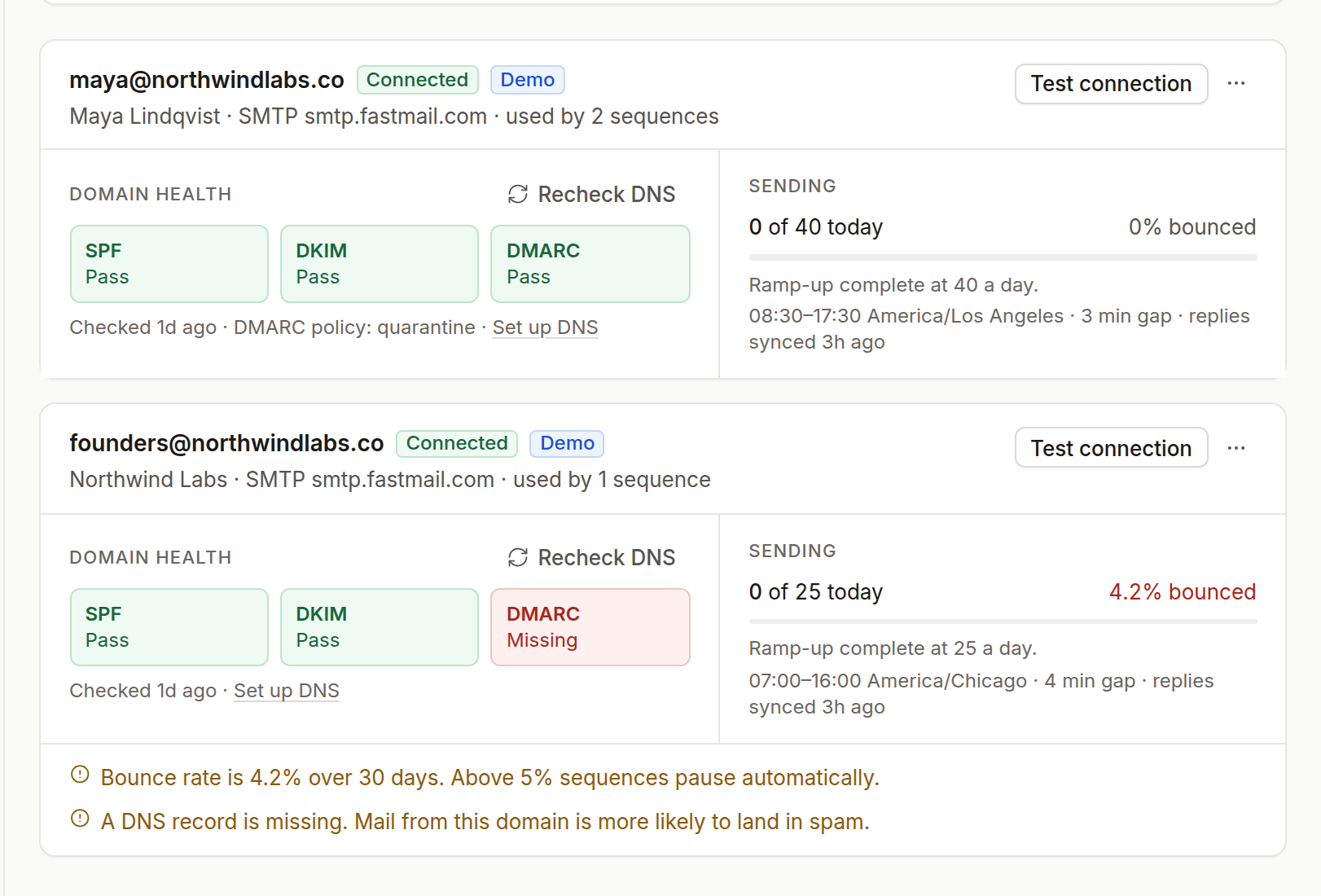
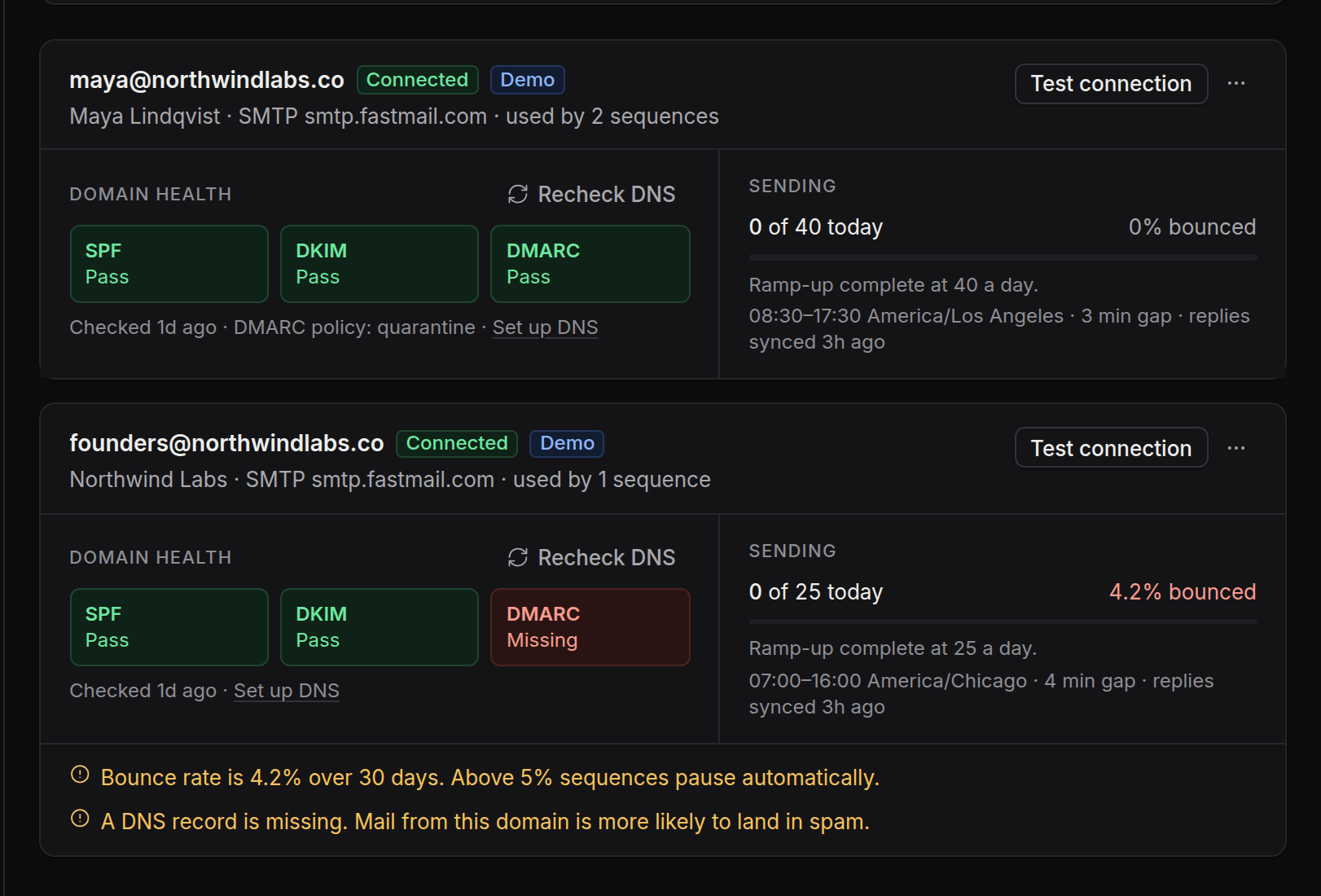
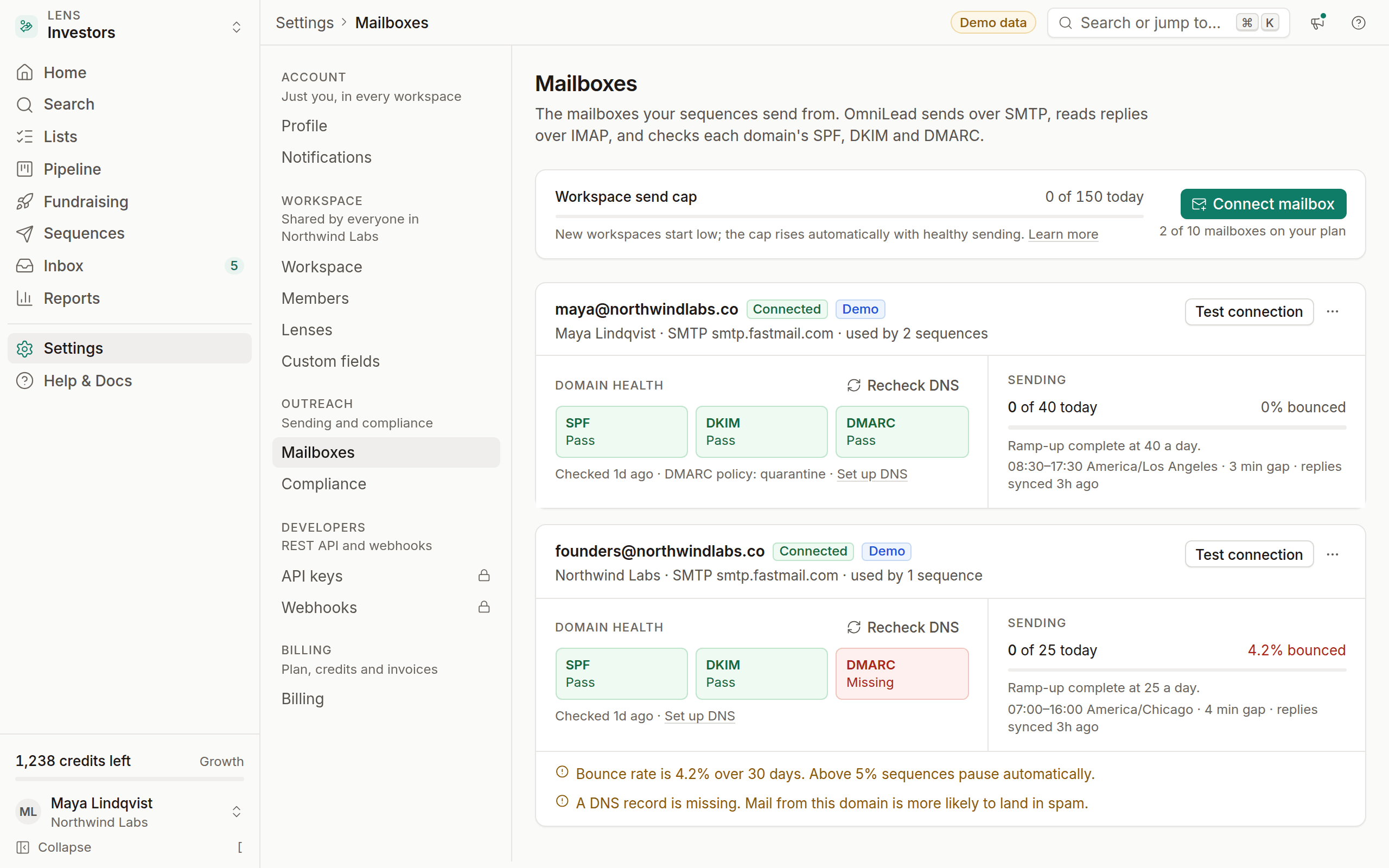
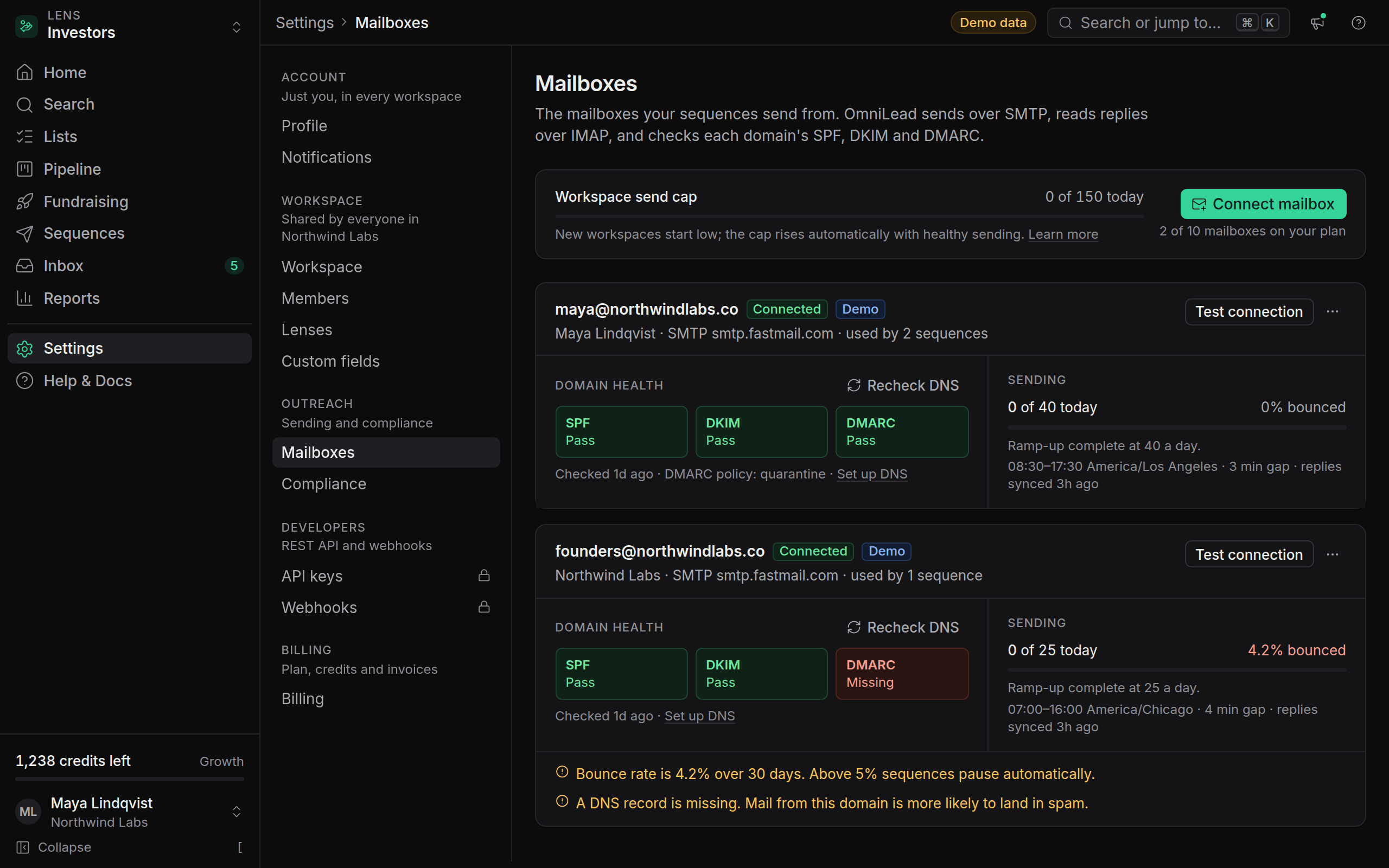
In OmniLead, go to Settings → Mailboxes, click Connect mailbox and choose Gmail (app password).
Enter your details
Enter your full Gmail address and paste the app password. OmniLead fills in the server settings for you.
Test and save
Click Test connection. When every check passes, click Save mailbox.
Check 2-Step Verification is allowed
Your Google Workspace admin must allow users to turn on 2-Step Verification (Admin console → Security → Authentication → 2-step verification). If your organization only allows security keys, app passwords aren't available; ask your admin.
Turn on 2-Step Verification
Go to myaccount.google.com/security with your work account and turn on 2-Step Verification.
Create an app password
Go to myaccount.google.com/apppasswords, name it "OmniLead" and click Create. Copy the 16-character password.
Connect it in OmniLead
Go to Settings → Mailboxes, click Connect mailbox, choose Gmail (app password) and enter your work address and the app password.
Test and save
Click Test connection, then Save mailbox.
These are the settings OmniLead uses for Gmail. You only need them if you connect Gmail as Custom SMTP.
Outlook
This covers Microsoft 365 (work and school accounts), Exchange Online and Outlook.com.
Ask your admin to allow SMTP sending
In the Microsoft 365 admin center, your admin opens Users → Active users, selects your account, opens Mail → Manage email apps, checks Authenticated SMTP and clicks Save changes. Organizations created after January 2020 have it off by default.
Start the connection
In OmniLead, go to Settings → Mailboxes, click Connect mailbox and choose Outlook / Microsoft 365.
Sign in with Microsoft
Click Sign in with Microsoft and sign in with the mailbox you want to connect.
Approve the permissions
Microsoft asks you to allow OmniLead to send and read mail as you. If your organization requires admin approval, Microsoft shows Need admin approval; send the request to your admin and try again once approved.
Test and save
Back in OmniLead, click Test connection, then Save mailbox.
Start the connection
In OmniLead, go to Settings → Mailboxes, click Connect mailbox and choose Outlook / Microsoft 365.
Sign in with Microsoft
Click Sign in with Microsoft and sign in with your Outlook.com address.
Approve the permissions
Click Accept to let OmniLead send and read mail for this account.
Test and save
Click Test connection, then Save mailbox.
Outlook.com is a personal service with low sending limits. For outreach, use a mailbox on your own domain.
If Microsoft sign-in isn't available yet
- Send from another mailbox on your domain. Many teams add a Google Workspace or Zoho mailbox on a separate outreach domain and connect it with an app password.
- Use an on-premises Exchange server that allows authenticated SMTP and IMAP. Connect it as Custom SMTP.
- Ask support to turn Microsoft sign-in on for your workspace. Use Contact support in the help panel.
Custom SMTP
Use this for any provider that supports SMTP and IMAP with a password or app password: Zoho Mail, Fastmail, Namecheap Private Email, your web host's email, or your own server.
Find your provider's settings
Look up the SMTP and IMAP server names and ports in your provider's help pages, or use the table below.
Create an app password if needed
If your account has two-factor authentication, create an app-specific password in your provider's security settings.
Open the connection form
In OmniLead, go to Settings → Mailboxes, click Connect mailbox and choose Custom SMTP.
Enter the sending settings
Fill in SMTP host, SMTP port, Security (SSL/TLS or STARTTLS), SMTP username and Password.
Enter the reading settings
Fill in IMAP host and IMAP port. The username and password are usually the same, so they're copied across; change them if yours differ.
Test and save
Click Test connection, then Save mailbox.
Server settings
Every mailbox needs two sets of server settings. If a connection fails, check these first.
SMTP
SMTP is how OmniLead sends. You need the SMTP host, the port and the security type:
- Port
465uses SSL/TLS from the first byte. - Port
587uses STARTTLS, which upgrades a plain connection to an encrypted one.
Pick the security type that matches the port. The username must be allowed to send as the mailbox's address; some providers reject mail when the username and the From address differ.
IMAP
IMAP is how OmniLead reads replies and bounces, so sequences stop when someone answers. It uses port 993 with SSL/TLS. Without IMAP, OmniLead can still send, but replies won't stop sequences automatically and bounces won't be suppressed, so Test connection asks you to add it.
Common providers:
Accounts hosted in Zoho's EU data center use smtp.zoho.eu and imap.zoho.eu. IMAP access must be turned on in Zoho Mail → Settings → Mail Accounts → IMAP.
Most hosts follow the same pattern. Look for "IMAP settings" or "email client settings" in your host's help pages.
OmniLead only connects on ports 465 and 587 for sending and 993 for reading, always encrypted. Port 25 and unencrypted connections aren't supported.
Test connection
Test connection checks both directions before you save:
Connect to SMTP
OmniLead connects to your SMTP server and signs in with your details.
Send a test email
It sends a short message from the mailbox to the same address, so nothing reaches anyone else.
Read replies over IMAP
It connects to your IMAP server, signs in and opens the inbox, which proves OmniLead will see replies.
Each check shows a green tick or an error that says what went wrong and how to fix it. You can delete the test message from your inbox afterwards. Save mailbox turns on once the test passes.
Mailbox settings
After you save, open the mailbox to set how it sends:
See Ramp-up and sending limits for recommended values.