Unified inbox
Read and answer replies from every sequence and mailbox in one place, with the lead's history next to each conversation.
The inbox collects replies to your sequences from every connected mailbox, so you don't have to check several accounts. Each conversation sits next to the lead's profile, so you can reply with full context.
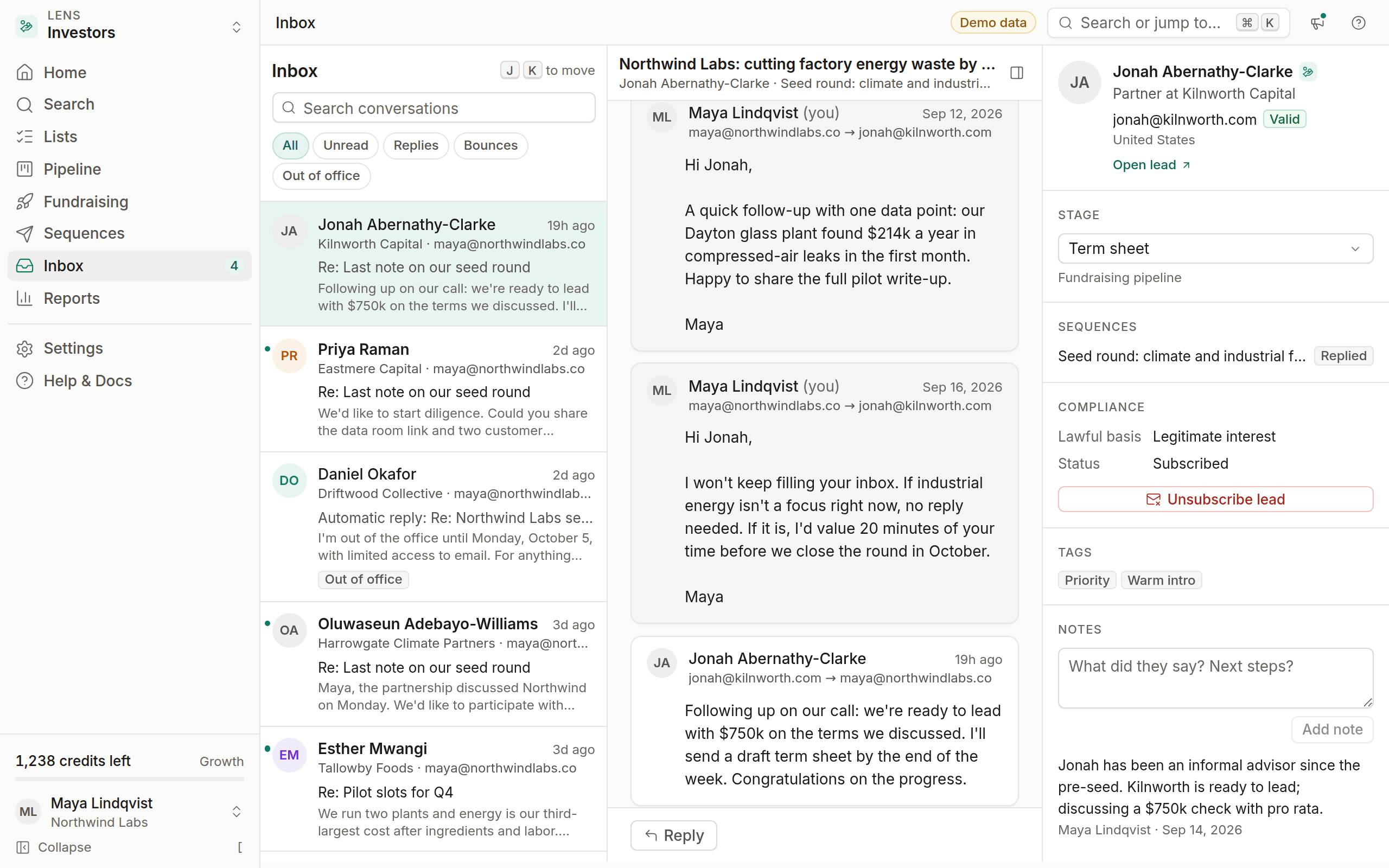
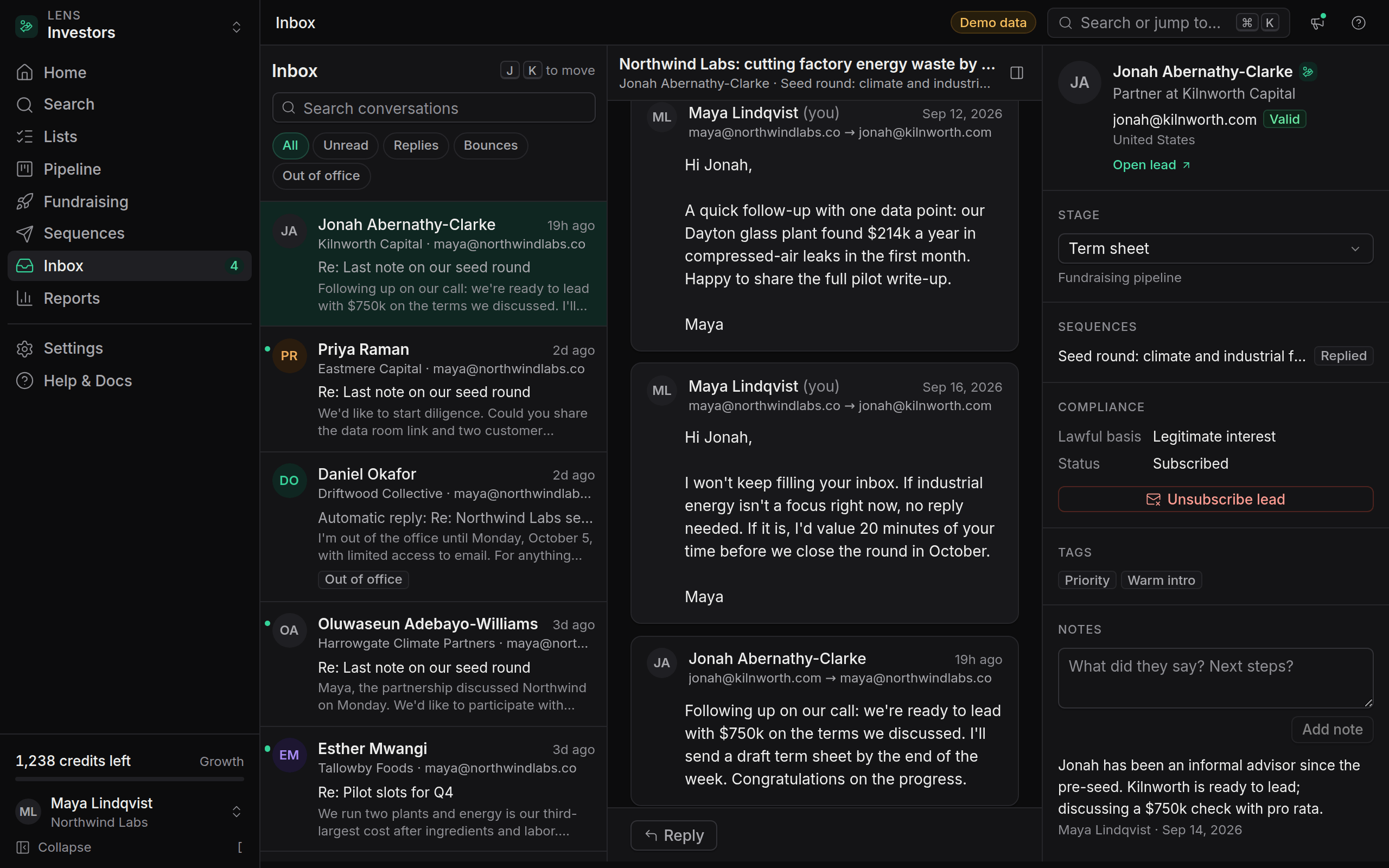
The three panes
The Inbox item in the sidebar shows the number of unread replies. On smaller screens, the lead pane opens from the thread header.
Filter conversations
Use the tabs at the top of the conversation list:
- All: every conversation
- Unread: conversations with replies you haven't opened
- Replies: conversations with a real reply, not only an out-of-office or a bounce
- Bounces: messages that bounced
- Out of office: automatic replies
To find a conversation, type in Search conversations. It matches the lead's name, email address and company, and the subject and text of the messages.
Move through conversations
Press J for the next conversation and K for the previous one. Opening a conversation marks its replies as read.
Reply from OmniLead
Open the conversation
Click it in the list, or move to it with J and K.
Write your reply
Click Reply under the thread. Your signature for that mailbox is added automatically.
Send
Click Send or press ⌘ Enter.
Replies go out from the same mailbox that received the message, in the same thread. They appear in that mailbox's Sent folder, so the conversation looks the same in your regular email app.
Update the lead as you go
From the lead pane, without leaving the thread:
- Move the lead to a new stage with the Stage menu
- Stop sequence for this lead
- Add a note about what they said
- Unsubscribe lead when someone replies asking to be removed. It works like the unsubscribe link: the address is suppressed and every sequence stops for them.
What reaches the inbox
- Replies to sequence emails, matched by thread headers and the sender's address
- Replies to messages you sent from the inbox
Messages unrelated to your sequences, such as newsletters and other mail in the same mailbox, aren't shown. Out-of-office replies are recognized and kept out of the unread count, and unsubscribe requests are processed automatically. See Reply and bounce handling.
Sync timing
OmniLead checks each connected mailbox for new replies over IMAP every few minutes. If a reply you can see in your email app isn't in the inbox yet, wait a few minutes. If it still doesn't appear, run Test connection on the mailbox to check that IMAP access still works.